Firestick Remote Not Working? 12 Easy, Proven Fixes (2026 Guide)

If your Firestick remote is not working, don’t rush out to buy another one. A weak battery, a lost Bluetooth connection or a Fire TV Stick that has stopped responding can all look much the same at first: you press a button and nothing happens. The trick is to work out which part has stopped responding before spending money.
A weak battery, a lost Bluetooth connection, or a Fire TV Stick that has stopped responding can all produce the same symptom: you press a button and nothing happens. Start with the quick checks below. If they don’t help, work through the model-specific pairing, reset and hardware tests so you can identify whether the fault is in the remote or the Stick.
This guide covers common Fire TV Stick and Alexa Voice Remote problems, but one detail matters: not every remote generation uses the same reset sequence or supports the same features. Match the instructions to your remote before holding button combinations.
Quick answer: Fit two fresh batteries, restart the Stick by disconnecting its power for 60 seconds, then try pairing again by holding Home for about 10 seconds. If navigation works but TV volume or power does not, skip the reset for now and check Equipment Control—that symptom usually points to a different setup issue.
On this page
Why is my Firestick remote not working?
Most Fire TV Stick voice remotes communicate with the Stick over Bluetooth, so they do not need to be pointed directly at the HDMI port like a traditional infrared TV remote. Weak batteries, a dropped Bluetooth pairing, a frozen Stick or wireless interference can stop navigation. The TV power and volume buttons are a separate case: those controls may use infrared or HDMI-CEC, depending on the remote and television setup. That is why it helps to identify exactly which buttons have stopped working before changing settings.
| What you notice | Possible cause | Start here |
|---|---|---|
| No buttons respond | Weak batteries, lost pairing or frozen device | Replace batteries, restart and pair again |
| Remote works only when close | Obstruction or wireless interference | Move closer and clear the area around the Stick |
| Navigation works, volume does not | TV equipment-control configuration | Check Settings → Equipment Control |
| Remote flashes orange in supported diagnostic mode | Remote is not paired | Restart Fire TV and pair the remote |
| Only some buttons fail | Button wear, dirt or a remote-specific fault | Inspect the buttons and test after fresh batteries |
One useful rule: If the Fire TV screen responds to the mobile app, don’t keep restarting the Stick. Concentrate on the physical remote. If neither control method works, check the device itself first. This simple split can save you from repeating the same steps.
Quick fixes to try first to troubleshoot firestick remote not working
Before resetting anything, identify what has actually stopped working. Test Home, the navigation ring, Back, Play/Pause and (if fitted) the TV volume buttons. If every navigation button fails, start with batteries, power and pairing. If only one key fails, inspect that button. If navigation works but TV volume or power does not, go straight to Equipment Control rather than resetting the whole remote. Then work through these checks one at a time:
- Replace both batteries with a fresh, matching pair of the type specified for your remote.
- Check the + and − markings inside the battery compartment.
- Move within about 10 feet (3 metres) of the Fire TV device and point the remote toward it.
- Unplug the Fire TV Stick’s power cable, wait 60 seconds, and reconnect it.
- When the Fire TV screen is ready, press and hold Home for about 10 seconds to try pairing.
A quick fault-isolation path before you reset
Use this short test to avoid repeating fixes that cannot address the symptom. It is a practical way to separate a remote fault from a Fire TV, Wi-Fi or TV-control problem:
| Test result | What it suggests | Your next move |
|---|---|---|
| Fire TV screen is frozen or blank | The Stick may not be processing any input. | Check its power and HDMI connection, then restart the Stick before resetting the remote. |
| Phone app works; physical remote does not | The Stick is responding, so the remote, batteries or pairing become the main suspects. | Replace batteries, pair again, then use the model-specific reset. |
| Navigation works; TV volume or power fails | The remote is communicating with Fire TV; TV equipment control is the likely issue. | Re-run Equipment Control for the correct TV brand. |
| Only one key fails | A stuck, worn or damaged button is more likely than a lost Bluetooth connection. | Clean around the key gently and test again; consider replacement if it remains unresponsive. |
| A replacement remote never appears | It may be incompatible, not in pairing mode or already at the controller limit. | Check Amazon’s compatibility list before buying or resetting again. |
12 ways to fix a Firestick remote not working
1. Replace the remote batteries
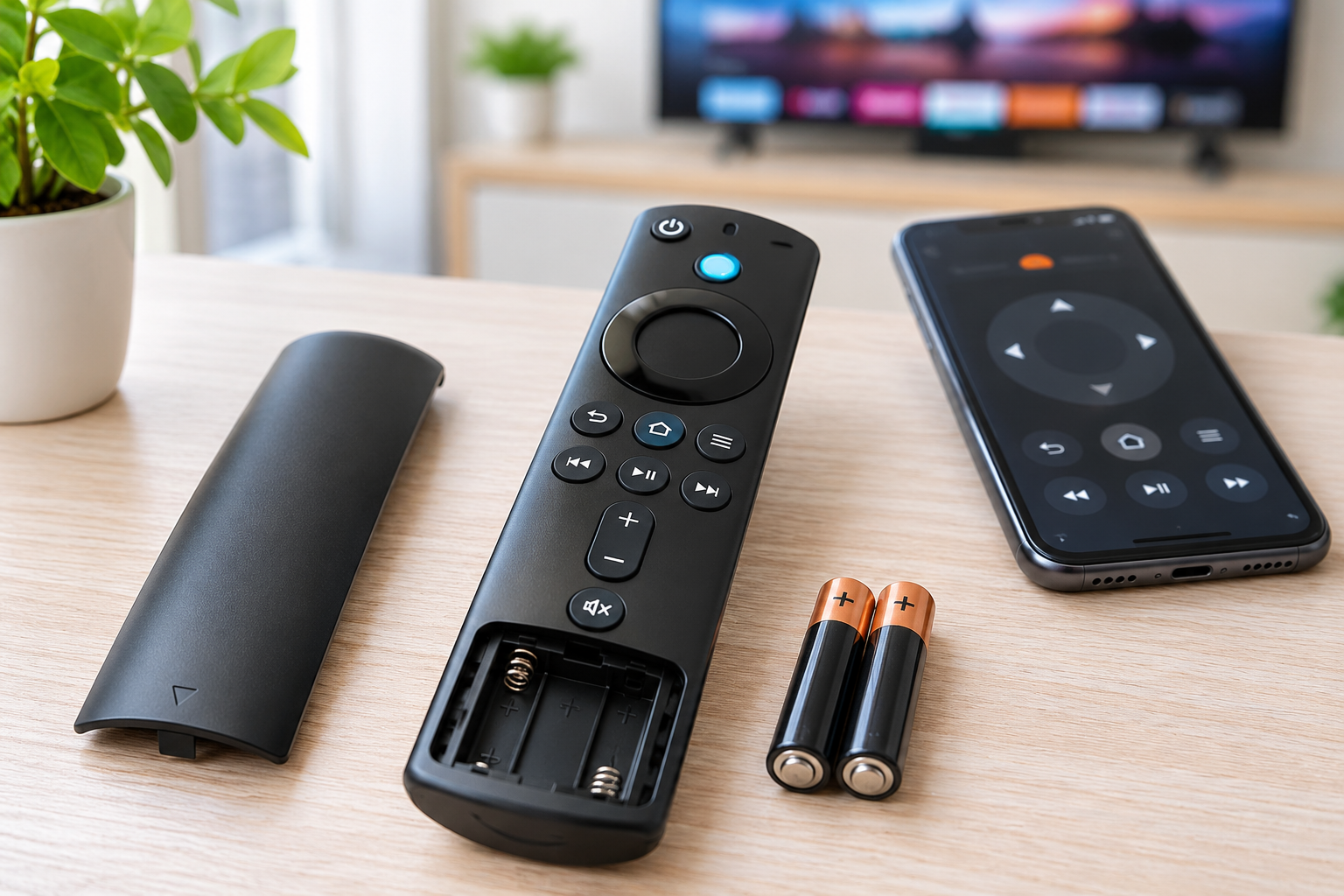
Start here, even if the batteries are not completely dead. Low voltage can cause intermittent button presses, delayed response or failed pairing. Replace both cells together with a fresh matching pair of the size specified for your remote (many models use AAA). Don’t mix old and new batteries, and don’t assume a battery is good just because it still works in a low-drain device.
- Open the battery cover.
- Remove both batteries.
- Insert a fresh matching pair, following the polarity marks.
- Close the cover and test the navigation ring and Home button.
2. Check battery polarity and contacts
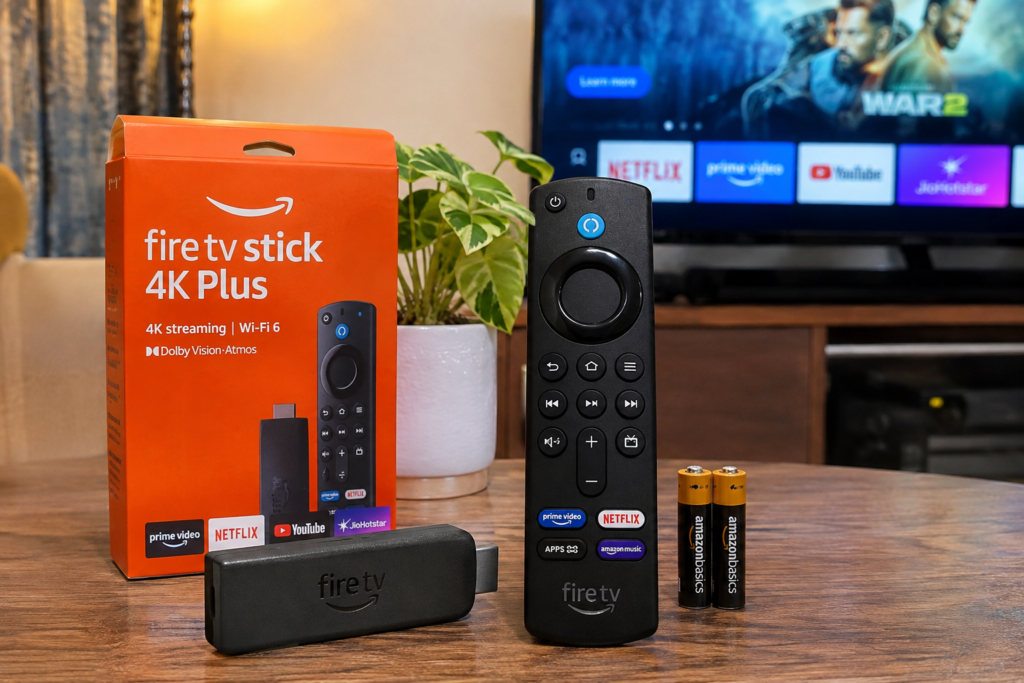
If your Firestick remote is not working after a battery change, take the batteries out and check the + and − markings against the way they are installed. Look at the metal contacts too. Dust or light grime can interfere with contact; corrosion, a loose spring or a battery that rocks in its compartment may indicate damage. Don’t scrape the terminals with a knife or screwdriver. If a battery has leaked, avoid touching the residue and replace a badly corroded remote.
3. Restart the Fire TV Stick
Check the screen before blaming the remote. If the Fire TV home screen is frozen, slow or blank, the Stick itself may not be processing button commands. Disconnect its power cable, wait 60 seconds, reconnect it and let the home screen finish loading. This is a normal restart; it does not erase installed apps or sign you out.
4. Pair the remote again
If your Firestick remote is not pairing after the Stick has restarted, try pairing again. Sit within 10 feet (3 metres) of the device, then press and hold Home for about 10 seconds. Watch the TV for a pairing confirmation. If nothing happens, remove the batteries for 30 seconds, reinstall them and repeat the attempt. Keep the remote close while pairing rather than testing it from your usual sofa.
Amazon also notes that a Fire TV device can have up to seven controllers paired. If that limit has been reached, remove an unused controller before adding another. See Amazon’s Fire TV remote pairing instructions.
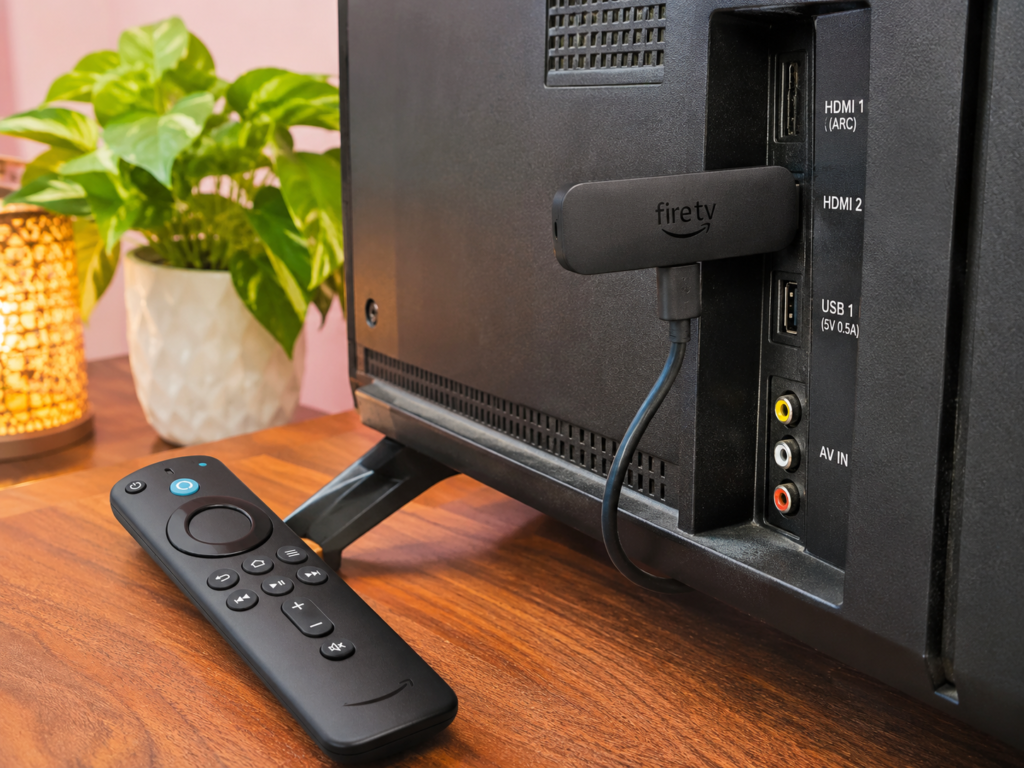
5. Reset the Fire TV remote (check the model first)
If your Firestick remote is not working even after pairing, a reset can help when restarting and basic pairing checks have not worked. Consider this step only after basic checks have not fixed the Firestick remote not working problem. Amazon publishes different reset steps for different remote generations. For most Fire TV remotes, its current procedure is:
- Unplug the Fire TV device from its power supply and HDMI input, then wait 60 seconds.
- Press and hold Left, Menu, and Back together for 12 seconds.
- Release the buttons and wait five seconds.
- Remove the batteries from the remote.
- Reconnect the Fire TV device and wait for the on-screen remote-detection message.
- Put the batteries back in and press Home.
This sequence is not universal. Amazon provides separate instructions for the Basic Edition Remote and the first-generation Alexa Voice Remote. Check the official Fire TV remote reset guide and select the procedure that matches your model. Do not try a random button combination from a different remote generation.
6. Reduce wireless interference
If your Firestick remote is working only intermittently, Bluetooth range and signal quality can suffer when the Stick is buried behind a television, inside a closed cabinet or surrounded by dense cables and electronics. Move closer and test again. If the Stick is tucked behind the TV, use its HDMI extender if one was supplied. Temporarily move nearby wireless equipment only as a test; change one thing at a time so you can tell whether the connection improves.
7. Check for physical damage or stuck buttons
If your Firestick remote buttons are not working, inspect the casing and buttons. A button that feels stuck, a cracked shell, liquid exposure or corrosion inside the battery bay can point to a physical fault. Remove the batteries before wiping the outside with a dry, lint-free cloth. For a sticky key, use a dry cotton swab around its edges; don’t spray cleaner into the gaps or pour liquid onto the remote. If Home, Back and the navigation ring work but one key does not spring back or respond, focus on that button rather than repeatedly resetting the Bluetooth connection. Avoid opening a remote that may still be covered by warranty.
8. Check for Fire TV software updates
If the Fire TV app or another remote still lets you navigate, check Settings for a Fire OS update. The exact menu wording varies by version. Install an available update, allow it to finish and restart the Stick. This won’t repair a physically damaged remote, but it can help if the trouble began after a software freeze or system glitch. Keep the device connected to power during the update.
9. Fix TV volume and power button problems
If your Firestick remote volume buttons are not working but the navigation ring and Home button work, here’s an important distinction: but volume, mute or TV power do not, the remote is probably still paired to the Stick. Check the TV-control setup instead. On many Fire TV Stick menus, go to Settings → Equipment Control → Manage Equipment → TV, confirm the correct TV brand and rerun the setup if needed. Menu names can vary by Fire OS version.
These instructions apply to Fire TV devices connected to a separate television, not Fire TV Smart TVs. Amazon’s volume, power and mute troubleshooting page explains the equipment-control steps.
If the TV still ignores power or volume, check two separate things: the remote must have dedicated TV-control buttons, and the television’s HDMI-CEC setting may need to be enabled for CEC-based functions. HDMI-CEC names differ by TV brand. This is not a fix for a remote that cannot navigate Fire TV menus, and it is not required for every infrared TV-control setup.
10. Use the Amazon Fire TV app as a temporary remote
When your Firestick remote is not working at all, the official Fire TV app can provide on-screen navigation and a keyboard. Install the app on your phone, connect the phone to the same Wi-Fi network as the Fire TV device, open the app, select your device, and follow the on-screen prompt. Your Fire TV must be powered on and discoverable on the network. The app is a practical temporary option while you troubleshoot a Firestick remote not working at all. This option may not help if the Stick has not yet been connected to Wi-Fi or is frozen during setup.
If the app controls Fire TV normally while the physical remote does not, that is a useful isolation test: the Stick is responding, so focus on the remote, its batteries, pairing or compatibility. If the app cannot discover the Stick, don’t conclude that the remote is faulty yet. First confirm that both devices are on the same Wi-Fi network, the Stick is powered on and online, and the router is not isolating wireless clients. Our guide to Wi-Fi connected but no internet covers related network checks.
Amazon’s Fire TV mobile remote instructions explain the setup process. App availability and features depend on the phone’s operating system and Fire TV model.
11. Check replacement remote compatibility
Don’t buy a replacement based on the words “Fire TV remote” alone. Amazon maintains a model-by-model compatibility list, and support differs by remote generation. For example, Amazon lists the Alexa Voice Remote Pro as compatible with Fire TV Stick 4K Plus, while the newer Fire TV Remote (2026 Release) has its own device list. A remote may pair for navigation yet still lack a feature you expect, so verify the exact model before ordering.
| Remote family | Example Fire TV devices Amazon lists | What to verify |
|---|---|---|
| Alexa Voice Remote Pro | Fire TV Stick 4K Plus; Fire TV Stick 4K Max (1st and 2nd Gen); selected Fire TV Cube and Stick models. | Check the exact Stick generation and whether the Pro features you want are supported. |
| Alexa Voice Remote (2024 Release) | Fire TV Stick 4K Plus; Fire TV Stick 4K (1st–3rd Gen); selected 4K Max and standard Stick models. | Do not assume it works with every older Fire TV device or every Smart TV. |
| Fire TV Remote (2026 Release) | Fire TV Stick 4K Plus; Fire TV Stick 4K (2nd and 3rd Gen); selected newer Stick and Cube models. | Use the 2026-specific compatibility section; this is not a universal replacement remote. |
How to identify your device: If you can navigate Fire TV, open Settings → My Fire TV → About and note the model. You can also check the Devices tab under Amazon’s Manage Your Content and Devices. Then compare that exact model with Amazon’s Fire TV remote compatibility list. The examples above are not a substitute for checking the full live list, which Amazon may update.
12. Decide whether the remote or Fire TV Stick needs replacement
Use the results of your tests to avoid replacing the wrong device. If the Fire TV app or another compatible remote controls the Stick, but this remote does not, the original remote is the likely fault. If neither the app nor a known-compatible remote can control it, check that the Stick has stable power, is fully booted and is displaying a usable home screen before assuming the remote is defective. If the screen itself is frozen or blank, troubleshoot the Stick and its power/HDMI connection first. Contact Amazon support or check warranty options if the fault persists.
Considering a Fire TV Stick 4K Plus instead?
If your tests point to a fault with the streaming device itself, rather than the remote, check the exact model and bundle before replacing the whole unit. Amazon India lists the All-New Amazon Fire TV Stick 4K Plus. This is a streaming-device option, not a replacement remote. Confirm the included accessories, remote version and compatibility details on the product page before buying; don’t assume that a remote sold separately will support every feature of your TV or Stick.
Firestick remote not working after changing batteries
Changed the batteries and the remote is still dead? Don’t keep buying new cells. Check the size and polarity, make sure both batteries are seated firmly, and inspect the contacts for corrosion or a loose spring. Then restart the Stick and try pairing again. If the remote remains unresponsive, use the reset procedure for its generation; repeated battery swaps won’t fix a lost pairing or damaged circuit.
What do orange, red, white or blue remote lights mean?
Do not assume that every Fire TV remote uses the same light codes. Some compatible remotes include a diagnostic mode; others have no LED at all. To check support, press the Alexa Voice button and see whether the LED at the top flashes. On a supported remote, press Rewind and Right together for three seconds, then press Menu. The LED should turn green to confirm that troubleshooting mode is active. Press any remote button to read the diagnostic light:
- Slow red blink: low battery.
- Fast red blink: a remote problem; Amazon recommends trying a reset.
- Orange: the remote is not paired.
- White: check that the Fire TV device is powered on.
- Blue: the diagnostic check did not identify a remote issue; try restarting Fire TV.
These meanings apply only to the supported diagnostic mode, not to every light or flash seen on every remote. To exit, press Play/Pause and Up together for three seconds, press Menu, then remove and reinstall the batteries. Amazon lists the supported models and full sequence in its Fire TV remote troubleshooting guide.
Firestick remote is not pairing: what to check
If your Firestick remote is not working because it has lost pairing, keep the remote close to the device, install fresh batteries, restart the Stick and hold Home for 10 seconds when the pairing screen appears. If you have several controllers already paired, remove an unused one if you can access Settings with the app or another remote. If pairing still fails, confirm that the replacement remote is compatible and use the correct reset instructions for its generation.
When should you replace your Firestick remote?
Replacement is reasonable when the remote has visible liquid damage, severe corrosion, broken buttons, or continues to fail after the correct reset and pairing steps. Before ordering, compare the remote’s compatibility with your exact Fire TV model. If the Stick itself is not responding to the official app or another known-compatible remote, replacing only the remote may not solve the problem. A Firestick remote not working because of physical damage is unlikely to improve with repeated resets.
When the remote works everywhere except one app
If Home, Back and the navigation ring work normally but the remote seems unresponsive inside just one streaming app, the remote may not be the problem. Close and reopen the affected app first. If the issue continues, open Settings → Applications → Manage Installed Applications, select that app and choose Clear Cache. Try this before clearing app data; clearing data can sign you out or reset the app’s local settings.
Should you factory-reset the Fire TV Stick?
Usually, no—not just because the remote has stopped responding. A factory reset removes account information and downloaded content, and you may need a working controller to complete setup again. Try the remote’s model-specific reset, a power restart and the app-based isolation test first. Consider a Fire TV factory reset only when you have a separate device-level problem and have exhausted less destructive checks.
Frequently asked questions
Why is my Firestick remote not working suddenly?
Common causes include weak batteries, lost pairing, a temporary Fire TV software freeze, wireless interference or physical damage. Start with fresh batteries and a device restart before resetting the remote.
How do I reset my Firestick remote?
Reset steps depend on the remote generation. For most Fire TV remotes, Amazon specifies disconnecting Fire TV for 60 seconds, holding Left, Menu and Back for 12 seconds, then reconnecting and pairing again. Basic Edition and first-generation remotes have different procedures.
How do I pair my Firestick remote again?
Move within 10 feet (3 metres) of the Fire TV device, then press and hold Home for about 10 seconds. If it does not pair, restart the Stick, check the batteries and follow Amazon’s model-specific pairing steps.
Why is my Firestick remote blinking orange?
On compatible remotes using Amazon’s diagnostic mode, orange indicates that the remote is not paired with the Fire TV device. Restart Fire TV and try pairing again. Do not apply this interpretation to an unrelated LED behaviour on a different remote model.
Can I use my phone if my Firestick remote is not working?
Yes, if the Fire TV device is powered on and connected to the same Wi-Fi network as your phone. Open the official Fire TV app, select the device and follow the prompts. It may not work during initial setup or when the Stick is offline.
Why do the volume and power buttons not work?
The remote may still be paired for navigation, while TV equipment control is incorrectly configured. On a Fire TV Stick, check Settings → Equipment Control → Manage Equipment → TV and confirm the correct TV brand.
Can I use an older Fire TV remote with a newer Stick?
Compatibility depends on the remote and Fire TV model. Check Amazon’s compatibility information before purchasing or pairing an older remote; some functions may not be supported even when basic navigation works.
Still no luck with your Firestick remote? Before buying a new one, try the Fire TV app on your phone. If you can navigate the home screen and open apps from there, your Fire TV Stick is probably fine, and the issue is more likely with the remote itself. You can then check whether your remote is compatible or look into getting a replacement.
But if the app doesn’t work either, don’t blame the remote just yet. The Stick may be the one causing trouble. It’s worth checking that before spending money on something you might not need.