WiFi Connected But No Internet?10 quick Fix That Work (2026)

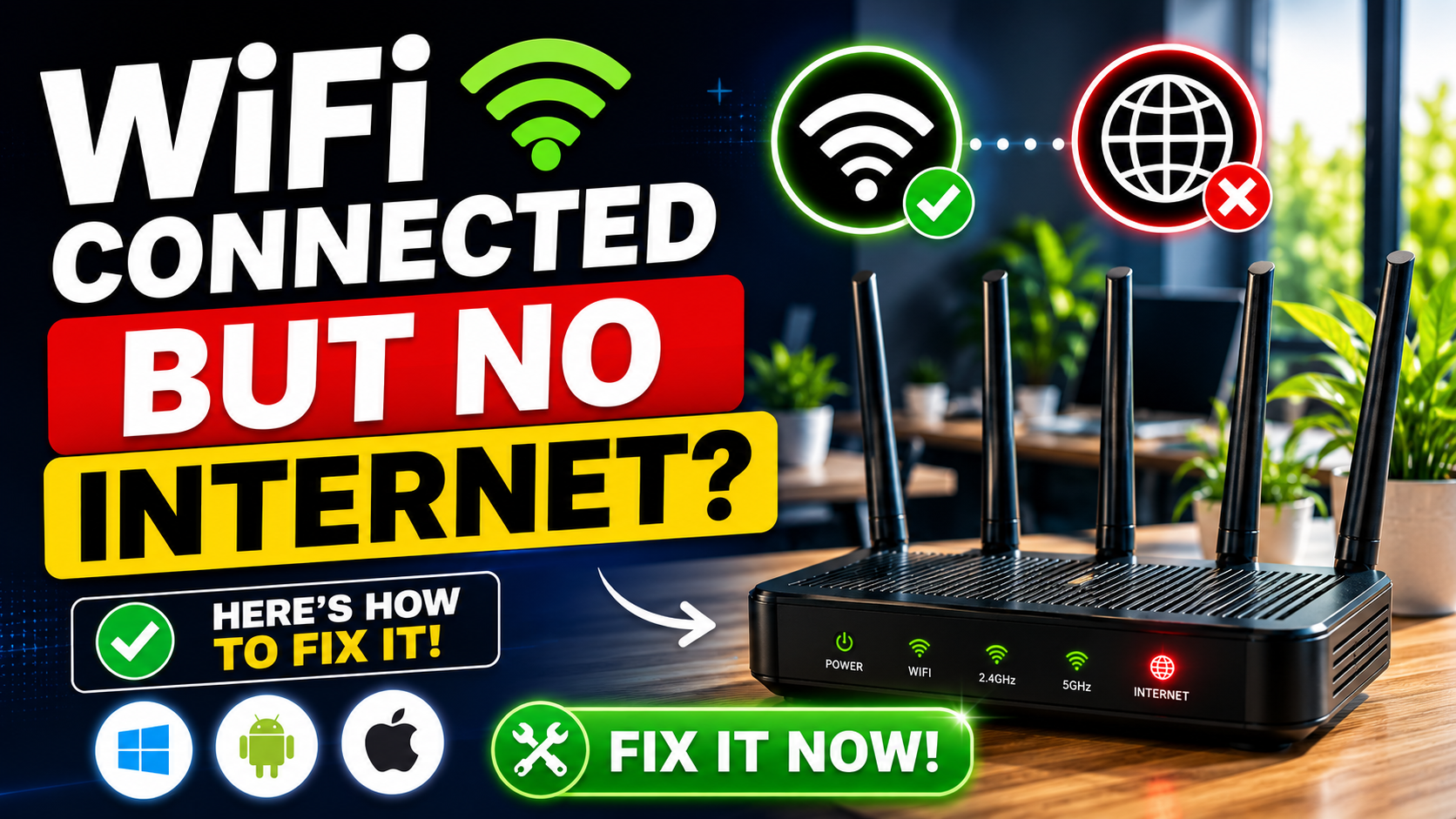
If you face the “WiFi connected but no internet” issue, you are experiencing one of the most common and frustrating connectivity problems today. The WiFi icon shows full signal, your device says “connected,” yet nothing loads — no websites, no apps, no downloads.
This issue affects smartphones, laptops, tablets, and even smart TVs. The good part is that in most cases, the problem is not serious and can be fixed in just a few minutes.
Table of Contents
In this complete guide, you will learn:
- Why WiFi shows connected but no internet
- Step-by-step fixes that actually work
- Advanced troubleshooting methods
- How to prevent this issue in the future
This article is designed for beginners as well as advanced users, with clear instructions you can follow immediately.
Common Reasons for WiFi Connected But No Internet
Before jumping into solutions, it is important to understand what is actually happening.
When your device connects to WiFi, it only connects to the router — not directly to the internet. If the router fails to communicate with your internet service provider, you will see “connected but no internet.”
Here are the main reasons:
1. Router or Modem Issue
Your router may be running but not receiving internet from the ISP.
2. ISP Downtime
Your internet provider may be facing technical issues or maintenance downtime.
3. DNS Configuration Error
Incorrect DNS settings can block your access to websites even if the connection is active.
4. IP Address Conflict
Multiple devices using the same IP address can cause network failure.
5. Device Software Glitch
Temporary bugs in your phone or laptop can interrupt connectivity.
6. Network Congestion
Too many connected devices can overload your router.
Understanding the root cause helps you apply the correct fix faster.
Fix 1: Restart Your Router (Most Effective Method)
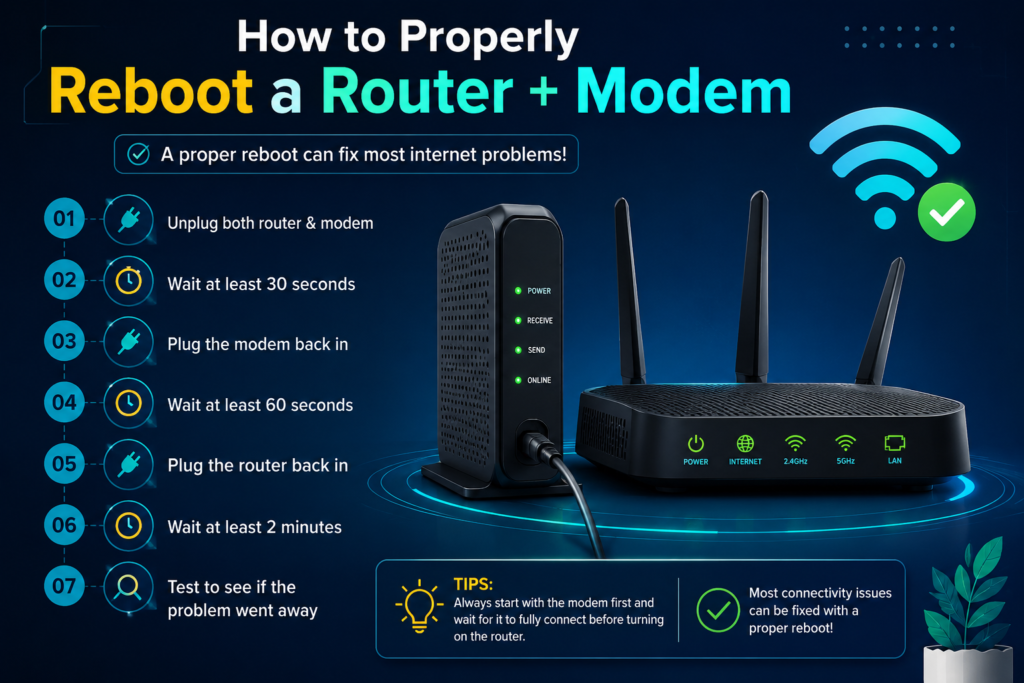
Restarting your router is the simplest and most effective solution. It resolves temporary bugs, clears cache memory, and refreshes your connection.
Steps to Restart Router Properly
- Turn off the router
- Unplug it from the power source
- Wait for 30 to 60 seconds
- Plug it back in and turn it on
- Wait until all lights stabilize
Why This Works
Routers continuously run in the background and can accumulate errors. Restarting resets all processes and re-establishes communication with your ISP.
In more than 70 percent of cases, this alone fixes the issue.
Fix 2: Turn Airplane Mode On and Off

This method refreshes your device’s network system instantly.
Steps
- Turn on airplane mode
- Wait for 10 to 15 seconds
- Turn it off
- Reconnect to WiFi
Why It Works
Airplane mode temporarily disconnects all wireless connections, forcing your device to reconnect from scratch. This clears minor network glitches.
Fix 3: Forget and Reconnect WiFi Network
Saved WiFi networks can sometimes become corrupted, especially after password changes or router updates.
Steps
- Open WiFi settings
- Select your network
- Tap on “Forget”
- Reconnect by entering the password again
Result
This removes outdated configurations and creates a fresh connection.
Fix 4: Change DNS Settings

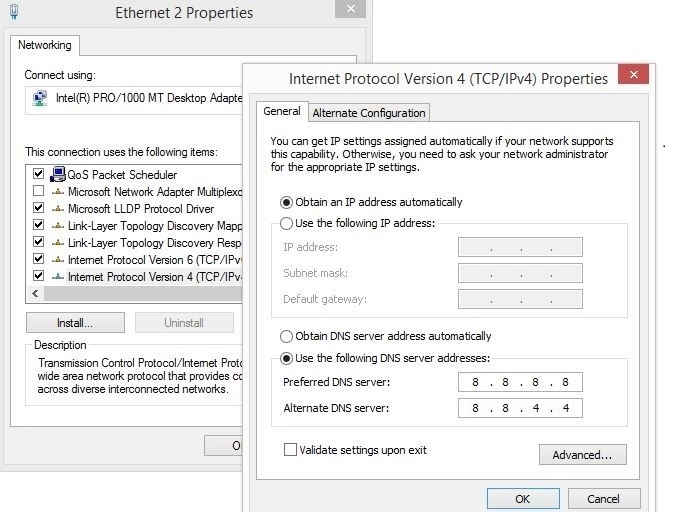
DNS (Domain Name System) translates website names into IP addresses. If DNS fails, internet access stops even when WiFi is connected.
Best DNS to Use
- 8.8.8.8
- 8.8.4.4
How to Change DNS (Android)
- Go to Settings
- Open Network and Internet
- Tap Private DNS
- Enter: Above provided DNS
How to Change DNS (Windows)
- Open Network Settings
- Go to Adapter Options
- Select IPv4
- Enter DNS manually
Benefits
- Faster browsing
- More stable connection
- Fixes loading issues
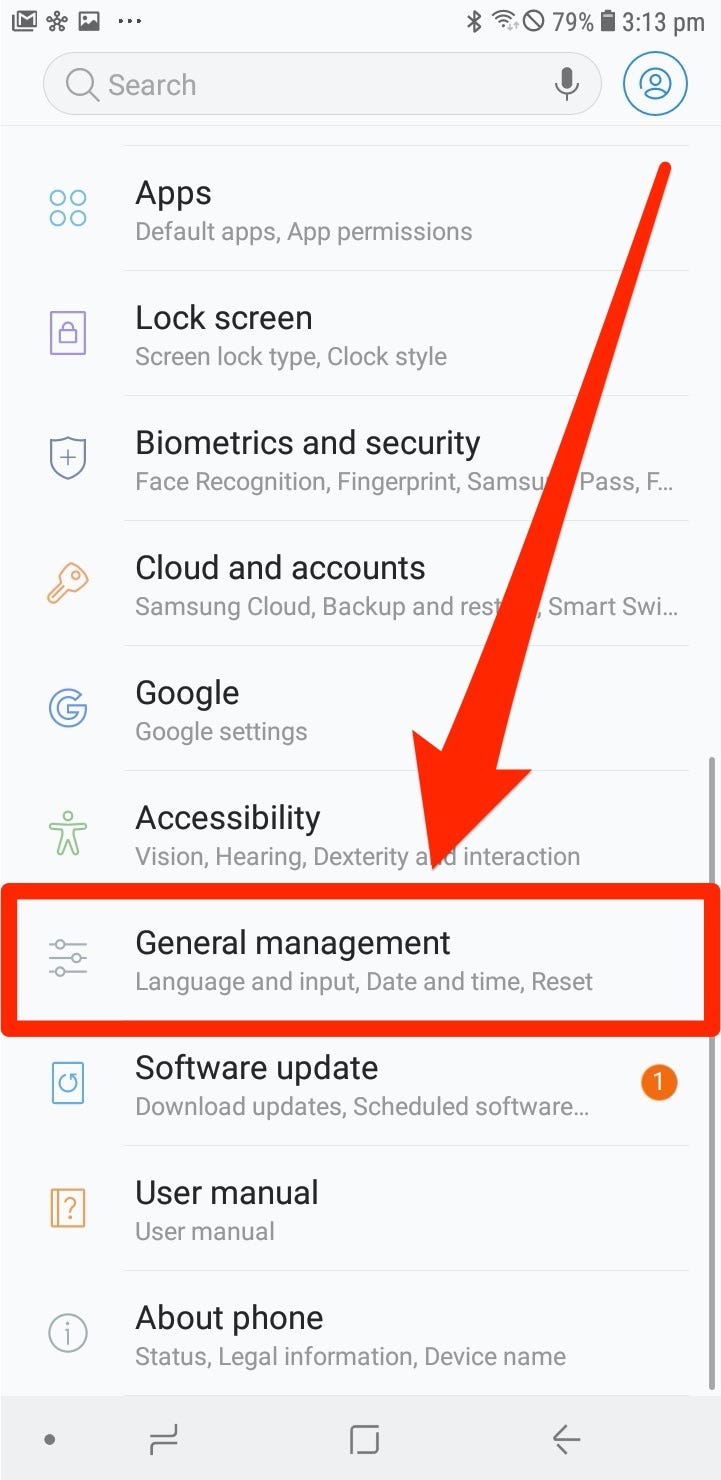
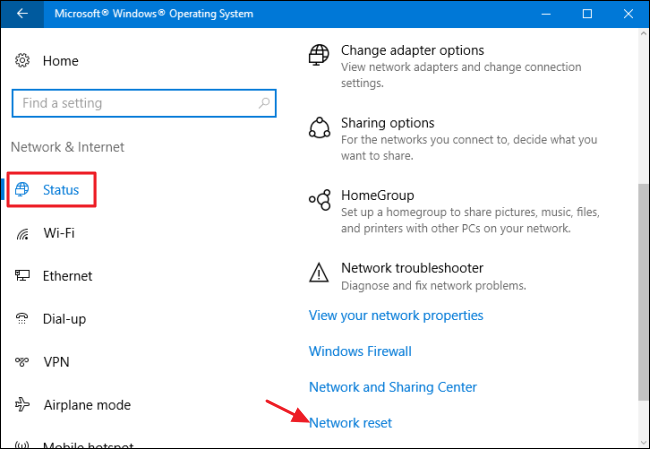
Fix 5: Reset Network Settings

4
If the issue persists, resetting network settings can resolve deep configuration errors.
Steps
- Go to Settings
- Search for Reset
- Tap Reset Network Settings
- Confirm
Important Note
This will delete:
- Saved WiFi networks
- Bluetooth connections
- Mobile data settings
Outcome
Your device will return to default network configuration, eliminating hidden errors.
Fix 6: Check Internet Service Provider (ISP)
Sometimes the problem is not on your side.
How to Check
- Try connecting another device
- Contact your ISP
- Check outage reports online
If multiple devices show no internet, it is likely an ISP issue.
Fix 7: Check Router Indicator Lights
Router lights provide important signals.
Common Indicators
- Green light: Normal operation
- Red light: No internet
- Blinking light: Connection unstable
If you see abnormal lights, your router is not receiving internet.
- Innovations in Semiconductor Technology Leading from CPUs to AI Chips
- A Comprehensive Guide to Intel® Optane™ Memory and How to Activate It
Fix 8: Disable VPN or Proxy
Sometimes a VPN or proxy server can cause the wifi connected but no internet issue by blocking access to websites or interfering with DNS settings.
Steps to Disable VPN or Proxy
- Turn off your VPN application
- Disable proxy settings on your device
- Restart your WiFi connection
- Reconnect to the network
Why This Fix Works
Incorrect VPN configurations can prevent your device from accessing the internet even when the WiFi network appears connected. Disabling the VPN often restores internet connectivity immediately.
Fix 9: Update Device Software
Outdated operating systems or network drivers can trigger the wifi connected but no internet problem due to compatibility bugs.
Steps to Update Your Device
- Open Settings
- Go to Software Update
- Check for available updates
- Install the latest updates
- Restart your device
Why Updating Helps
Software updates fix network-related bugs, improve WiFi stability, and enhance compatibility with modern routers and ISPs.
Fix 10: Reduce Network Load
If too many devices are connected to the same network, your router may struggle to provide stable internet access.
How to Reduce Network Congestion
- Disconnect unused devices
- Pause large downloads or streaming
- Limit background updates
- Restart the router
- Upgrade to a dual-band or modern router if needed
Why This Matters
Heavy network traffic can cause slow speeds, unstable connections, or even a complete wifi connected but no internet error.
Advanced Troubleshooting Methods
If the basic solutions do not fix the wifi connected but no internet issue, try these advanced troubleshooting techniques.
Flush DNS Cache (Windows)
Corrupted DNS cache files can prevent websites from loading properly.
Steps
- Open Command Prompt
- Type:
ipconfig /flushdns- Press Enter
This clears old DNS records and refreshes your network connection.
Renew IP Address
Renewing your IP address can fix network conflicts and restore internet access.
Commands
ipconfig /releaseThen run:
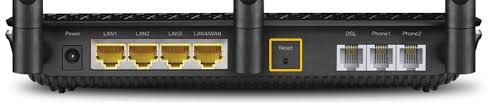
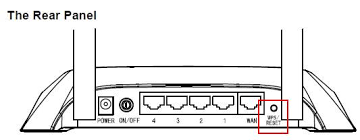
ipconfig /renewFactory Reset Your Router
If nothing works, resetting the router may solve deep configuration problems causing the wifi connected but no internet issue.
Steps
- Locate the reset button on the router
- Press and hold it for 10–15 seconds
- Wait for the router to restart
- Reconfigure your WiFi settings
Note: This should be your last troubleshooting step.
How to Prevent WiFi Connected But No Internet Issues
Preventive maintenance can help avoid future connectivity problems.
1. Restart Your Router Regularly
Restarting your router weekly clears temporary glitches and improves performance.
2. Use a High-Quality Router
Older or low-quality routers may fail under heavy load and frequently disconnect from the internet.
3. Keep Router Firmware Updated
Firmware updates improve router security, stability, and internet performance.
4. Secure Your WiFi Network
Unauthorized users can consume bandwidth and slow down your connection. Use a strong WiFi password and WPA2/WPA3 security.
5. Use Reliable DNS Servers
Switching to reliable DNS providers like Google DNS or Cloudflare DNS can improve internet reliability and browsing speed.
Popular DNS servers:
- Google DNS: 8.8.8.8
- Cloudflare DNS: 1.1.1.1
FAQ – WiFi Connected But No Internet
Why does my WiFi say connected but no internet?
This means your device is connected to the router, but the router itself cannot access the internet.
How do I fix wifi connected but no internet quickly?
Try these quick fixes:
- Restart your router
- Toggle airplane mode
- Forget and reconnect to WiFi
- Change DNS settings
- Restart your device
Is wifi connected but no internet a hardware problem?
Usually not. Most cases are caused by software bugs, DNS issues, ISP outages, or router configuration problems.
Can this problem affect all devices?
Yes. The wifi connected but no internet issue can affect smartphones, laptops, tablets, smart TVs, and gaming consoles.
How do I know if my ISP is down?
If all devices connected to your WiFi show no internet access, the issue is likely with your Internet Service Provider (ISP).
Conclusion
The wifi connected but no internet problem is one of the most common network issues, but it is usually easy to fix. In many cases, simple solutions like restarting the router, changing DNS settings, or updating software restore internet access within minutes.
Start with the basic troubleshooting methods first, then move to advanced fixes if needed. Understanding the root cause of the problem helps you solve it faster and prevent future connectivity issues.
By following this guide, you can quickly fix the wifi connected but no internet error and enjoy a stable internet connection again.