
What is rtr*.tmp File in Windows 11: Is It Safe to Delete?

Quick Answer: If the rtr.tmp* file is located in the root of your Windows drive (usually C:), is exactly 1,048,576 KB (1 GB) in size, and appears after Drive Optimization (Defrag/Optimize Drives), it is generally a legitimate temporary system file created by Windows, not malware.
Normally, Windows deletes the file automatically after the optimization process completes. If the PC is interrupted by a restart, shutdown, or crash, the file may remain in the root directory. In that case, you can safely delete it after confirming no drive optimization is currently running.
However, if an rtr.tmp* file appears inside AppData, Temp, Downloads, or another unusual folder, has a different size, or is accompanied by suspicious system behavior, scan your PC with Microsoft Defender or another trusted antivirus to rule out malware.
Table of Contents
1. Introduction: The Visual Shock of rtr.tmp
While hunting through your system drive (C:) to free up disk space, or checking an external backup drive, finding a file named rtrD131.tmp or rtr.tmp can catch you off guard. It usually presents an unfamiliar blank icon, sits out in the open in your root directory, has its file attributes set to hidden, and takes up exactly 1.00 GB (1,048,576 KB).
Because many malicious programs disguise themselves with randomized characters and hide in key system pathways, it is completely reasonable to wonder if this file is malicious.
This guide will explain everything behind this file. We will walk through why the operating system generates it, confirm that it is benign under normal parameters, and show you exactly how to verify its authenticity and remove it safely.
2. Deep Dive: What is rtr*.tmp File?
The rtr*.tmp file is a core structural artifact generated by the native Windows Drive Optimizer Engine (internally recognized as dfrgui.exe or defrag.exe).
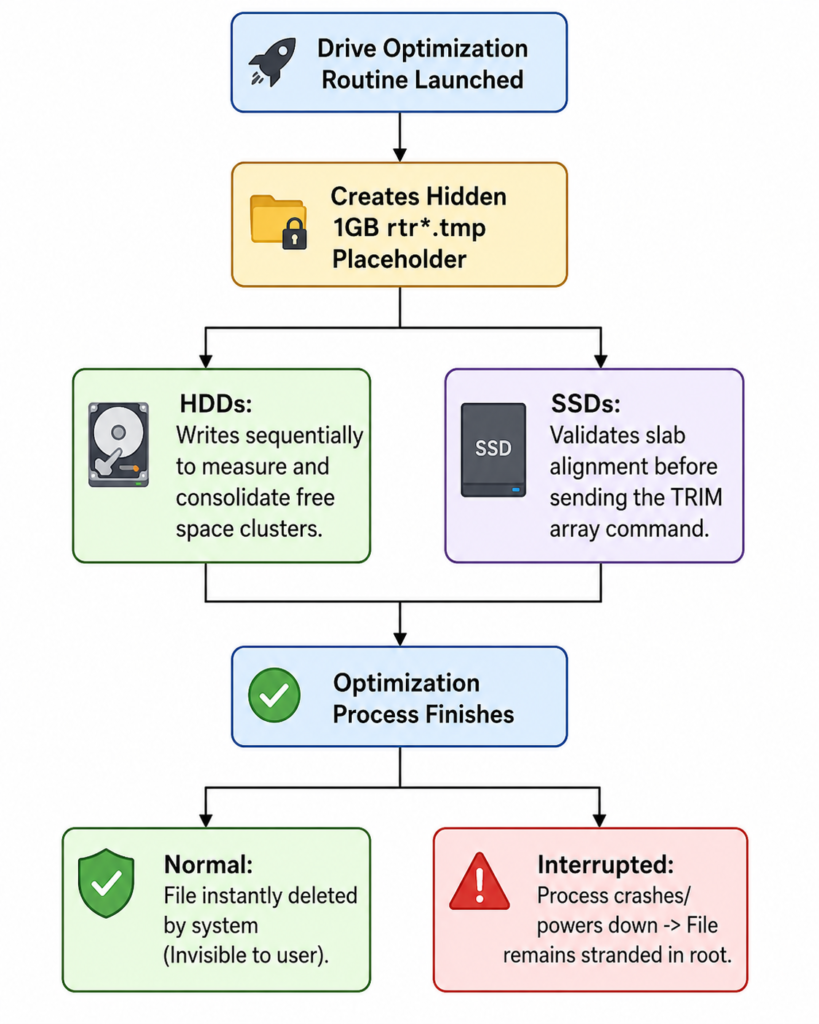
When Windows runs its automated maintenance schedule, the defragmentation service creates one or more file allocation chunks starting with the prefix rtr followed by four random alphanumeric characters (for example, rtr504C.tmp).
Windows relies on this placeholder file as a test space to map contiguous free space blocks. When evaluating optimization efficiency, the engine needs to write a predictable structure to disk to see how underlying file blocks are arranged.
3. The Technical Reason: Why is it Exactly 1GB?
Windows developers built the storage optimization subsystem to handle files using specific sizing strategies. A target size of 1GB (1,048,576 KB) serves as an ideal baseline for several reasons:
- VSS/Shadow Copy Guardrails: Volume Shadow Copy Services (VSS) track changes across drive sectors in chunks. Writing a 1GB temporary file balances accuracy with performance, preventing Windows from creating too many shadow copy deltas that would waste system restore points.
- Slab Alignment Validation: Modern storage devices organize memory cells into larger groups called “slabs” (typically 1GB blocks). To run a clean storage optimization pass or a solid-state drive (SSD) TRIM cycle, the defragmentation tool tests block responsiveness at this scale.
- Predictable Allocation Tracking: By using a single large file rather than millions of tiny ones, the system minimizes overhead on the Master File Table (MFT), allowing it to quickly build a clear picture of free space fragmentation.
4. Is it Safe to Delete? (Scenarios Analyzed)
You can absolutely delete any lingering rtr*.tmp files. Because they are temporary workspaces, removing them will not compromise system stability or corrupt your operating system files.
To avoid file locks, check the context of your storage state before deleting:
| Operational Scenario | File Status | Recommended Action | Risk Assessment |
| Idle System (Maintenance Not Running) | Stranded artifact from an old, interrupted defrag run. | Delete instantly via File Explorer or Terminal. | 0% Risk – Completely Safe |
| Active Optimization Running | In use by defrag.exe to organize files or clear space. | Wait for the process to finish, or stop it via Drive Optimizer. | Low Risk – May trigger an “In Use” error. |
| Booting After a System Crash | Abandoned when the computer abruptly lost power mid-defrag. | Delete manually to recover your storage space. | 0% Risk – Completely Safe |
5. Can rtr*.tmp Be Malware? (Security Verification)
While the real rtr*.tmp is a standard Windows file, malicious software can sometimes use identical names to hide on a system. It helps to verify the file’s properties before making changes.
Step 1: Check the File Location
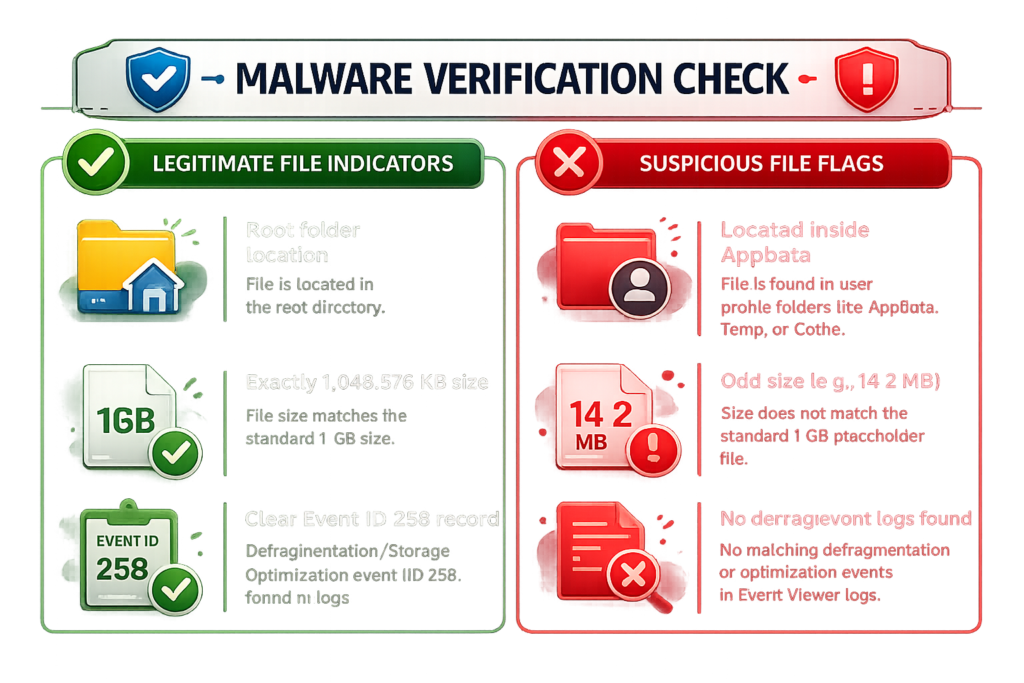
The legitimate tool always creates this file directly in the root directory of a drive partition (e.g., C:\rtrA1B2.tmp or D:\rtr99FF.tmp). If you discover a file with this name nested inside paths like C:\Windows\System32, C:\Users\Username\AppData, or temporary environment paths, it could be a malicious file trying to mimic a system item.
Step 2: Use PowerShell to Verify the Creation Source
Open an elevated PowerShell window and look for recent drive optimization events to confirm when the file was created:
PowerShell
Get-EventLog -LogName Application -Source "defrag" -Newest 10 | Format-Table TimeGenerated, EventID, Message -Wrap
Look for Event ID 258 or Event ID 257 matching the approximate creation timestamp of your file. This confirms the Windows defragmentation service generated the file.
6. SSD vs. HDD Behavior during Optimization
The Drive Optimizer treats storage drives differently depending on whether they are solid-state or traditional mechanical hard disks.
Solid-State Drives (SSD / NVMe)
On an SSD, Windows avoids traditional defragmentation because moving sectors around creates unnecessary write cycles that shorten the drive’s lifespan. Instead, the engine writes the temporary file to verify that the drive’s storage cells are correctly aligned before running the TRIM command. This command tells the SSD which blocks of data are no longer needed so they can be wiped internally for future writes.
Also Read >> NVMe vs SATA SSD: 7 Things That Actually Make NVMe Faster
Traditional Hard Disk Drives (HDD)
For mechanical hard drives, the optimizer uses the file to rearrange scattered pieces of data into clean, sequential rows. This shortens the physical distance the drive head has to move across the platters, improving overall read and write performance.
7. Windows 10 vs. Windows 11 Handling
While both operating systems use the same underlying engine, Windows 11 handles maintenance schedules a bit differently:
| Feature Dimension | Windows 11 Management | Windows 10 Management |
| Process Execution Engine | Advanced dfrgui.exe with improved power-state awareness. | Legacy defrag.exe foundation. |
| Storage Sense Integration | Deeply integrated into native cleanup schedules. | Run as an independent storage manager. |
| Task Failure Cleanup | Automatically attempts to clean up orphaned files on the next boot. | Often leaves the file behind until the next scheduled manual run. |
| NVMe Tier Optimization | Optimized for modern high-speed PCIe Gen 4/5 controller lanes. | Optimized primarily for SATA-bound interfaces. |
8. Step-by-Step Instructions: How to Safely Delete rtr*.tmp
If a temporary file becomes stuck on your drive, you can use any of the four methods below to safely remove it.
Method 1: Using Windows File Explorer
Because these files are hidden by default, you will need to change your view settings to see them:
- Press
Win + Eto open File Explorer. - In the top command bar, click View > Show and check Hidden items.
- Navigate to your root directory (
C:\). - Locate the
rtr*.tmpfile, select it, and pressShift + Deleteto permanently remove it without sending it to the Recycle Bin.
Method 2: Command Prompt (Elevated Terminal)
Using the command line bypasses potential interface delays:
DOS
cd \
del /f /a:h rtr*.tmp
The /f switch forces the deletion of read-only files, and /a:h tells the command to look for files with the hidden attribute enabled.
Method 3: PowerShell Advanced Remediations
If you prefer using PowerShell, you can target and delete the files using this command structure:
PowerShell
Remove-Item -Path "C:\rtr*.tmp" -Force -ErrorAction SilentlyContinue
1.Open Terminal as Admin:Required for root disk privileges.
Right-click the Start Menu button and select Terminal (Admin) or PowerShell (Admin).
2.Stop the Drive Optimization Service:Prevents file-in-use blocks.
Stop any active optimization jobs to release file handles by typing: Stop-Service -Name defrag -Force and hitting Enter.
3.Execute Force Deletion:Cleans out the root folder targets.
Run the targeted removal command: Remove-Item -Path "C:\rtr*.tmp" -Force.
Method 4: Booting into Safe Mode
If Windows displays an error saying the file is open in another program and cannot be deleted, you can clear it by booting into Safe Mode:
- Hold down the
Shiftkey while clicking Restart in your Start Menu. - Go to Troubleshoot > Advanced options > Startup Settings and click Restart.
- Press
4orF4to boot your computer into Safe Mode. - Once Windows loads, open File Explorer, navigate to the drive root, and delete the file.
Also Read >>> Laptop Not Powering On? 9 Quick Fixes That Actually Work (Complete Guide)
9. What Is rtr*.tmp File? Why Does It Keep Coming Back?
If you notice an rtr*.tmp file showing up again after you delete it, your computer is not infected. It simply means your system’s automatic maintenance tools are working as intended.
Windows runs the Drive Optimizer in the background based on a weekly or monthly schedule managed by the Task Scheduler. Every time this task kicks off, a new temporary file is created to test your drive’s free space. It should disappear automatically once the task finishes. If it keeps sticking around, it usually means the background job is being interrupted before it can clean up after itself.
10. Advanced Troubleshooting for Storage Issues
What to Do If the File Fails to Delete
An error message like “Access Denied” or “File in Use” means a system process is actively reading or writing to the file. You can find out which program is locking it by using the built-in Resource Monitor:
- Open the Start Menu, type Resource Monitor, and launch the app.
- Head to the CPU tab and expand the Associated Handles section.
- Type
rtrinto the Search Handles field. - If
defrag.exeor a third-party antivirus program appears in the list, right-click the process name and select End Process to release the file lock.
11. Common Myths vs. Verified Facts
There are plenty of misconceptions floating around online forums about what these temporary files actually do. Let’s clear up some of the most common myths:
| The Myth | The Verifiable Reality |
| “It’s a ransomware component pre-allocating data chunks.” | False. It is a native Windows asset created by the storage management subsystem (defrag.exe). |
| “Deleting this file will corrupt your system backups.” | False. It holds no persistent operational configuration data and is completely safe to delete. |
| “If it appears on an SSD, your drive is failing.” | False. Windows uses the file on solid-state drives to measure blocks and run standard TRIM cycles. |
| “Third-party defrag tools are the only things that create it.” | False. The native Windows system tool creates this file during automatic background maintenance. |
12. Expert Recommendations for Windows Drive Maintenance
To keep your storage drives running smoothly and prevent temporary files from causing confusion, consider these best practices:
- Leave Scheduled Optimization On: Do not disable the built-in Windows Drive Optimizer. Forcing it off stops necessary background TRIM commands on SSDs, which can slow down your drive’s performance over time.
- Use Storage Sense: Turn on Storage Sense inside your Windows 11 System Settings. This utility automatically cleans out old upgrade files, logs, and empty temporary spaces without needing manual intervention.
- Give Maintenance Time to Finish: Avoid shutting down your computer or closing your laptop lid if you notice your hard drive is under heavy use during scheduled idle times. Letting the optimization process finish ensures it cleans up its temporary workspace properly.
13. Frequently Asked Questions
Can I delete rtr*.tmp?
Yes. If you see this file sitting in your drive’s root folder, the optimization process has already finished or was interrupted. You can safely remove it to get your 1GB of storage space back.
Is rtr*.tmp a virus?
No. Under normal conditions, it is a safe system file created by the Windows Drive Optimizer tool. If you want to be completely sure, check the file location—if it is not in the root directory of a drive, scan it with Windows Security.
Why is the file exactly 1GB?
It is sized at exactly 1GB to match the standard sizing layout Windows uses to analyze drive clusters and align storage slabs without overloading the system’s change-tracking services.
Does Windows recreate it automatically?
Yes. Every time a scheduled disk optimization pass runs, the system creates a fresh temporary file to analyze your drive’s free space layout.
Is it normal to see this file on an SSD?
Yes. Windows writes this temporary file to solid-state drives to check alignment before sending TRIM commands to your drive controller.
Can my antivirus remove it?
Most antivirus programs will ignore this file because it is a verified, safe system item. If you want it gone, it is best to delete it manually using File Explorer or terminal commands.
Why is this file hidden?
Windows hides the file to prevent accidental changes or deletions while an optimization task is running in the background.
Why does it appear on my D: or E: drives?
The Drive Optimizer maintains all connected storage partitions. If your secondary drives are included in your automatic optimization schedule, the tool will create a temporary file in the root folder of those drives too.
Does Windows 10 create this file as well?
Yes. The defragmentation tools in both Windows 10 and Windows 11 use this same method to analyze free space fragmentation.
Is the Drive Optimizer responsible for leaving it behind?
Yes. If the optimization task is cut short by a system crash, low power mode, or an unexpected shutdown, the tool can leave the file behind on your drive.
Can running CHKDSK remove the file?
No. The chkdsk command checks for structural errors in your file system, but it will not delete valid temporary files. You will need to remove it manually or let Storage Sense handle it.
Will using System Restore remove it?
No. System Restore manages core system files, registry entries, and program states, but it does not track or delete temporary files located in the root directories of your drives.
Should I turn off the Optimize Drives feature?
We do not recommend turning it off. Disabling the feature stops important maintenance tasks like SSD TRIM commands, which help extend the life and speed of your drive.
Can I safely ignore the file?
Yes. Leaving the file alone will not hurt your computer or impact performance, though it will continue to take up 1GB of storage space until it is removed.
What should I do if the file says “Access Denied” when deleting?
This means the optimization process is likely still running or another system tool has locked the file. Try stopping the defragmentation service or restart your PC in Safe Mode to clear it.
Does Disk Cleanup remove rtr*.tmp files?
The legacy Disk Cleanup tool may miss files sitting directly in the root directory. Using Windows 11 Storage Sense or deleting the file manually is a more reliable way to clear it.
Can a regular user account delete this file?
Because the file sits in the root directory of your system drive, you will need administrative privileges to delete it.
Why do I see multiple rtr*.tmp files on my drive?
If your computer experiences multiple interrupted optimization cycles or handles very large storage volumes, the tool may occasionally leave behind more than one temporary file.
Does this file cause high disk usage?
Only while an optimization pass is actively running. Once the task finishes or is stopped, the file becomes inactive and will not use any system resources.
How can I make sure it is a legitimate system file?
Check where the file is located. A genuine file will always be in the root directory of a drive (like C:\) and will match a corresponding optimization entry inside your Windows Event Viewer logs.
Final Thoughts
In most cases, an rtr.tmp* file is simply a temporary placeholder created by Windows Drive Optimization. If it’s exactly 1 GB, located in the root of the drive, and matches recent optimization activity, there’s usually no cause for concern. Just verify its location and size before deleting it, and investigate further only if it appears in an unusual folder or shows suspicious behavior.