Laptop Not Charging But Plugged In (Real Causes and Fixes That Actually Work)

Table of Contents
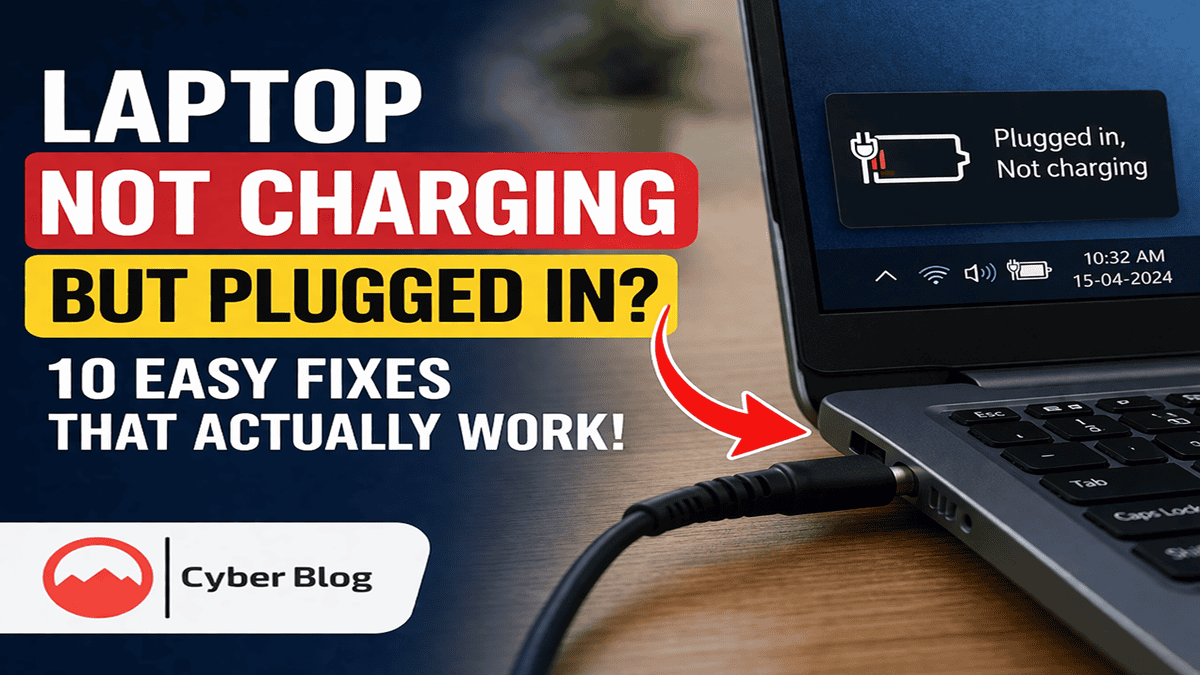
If you are facing “Laptop Not Charging But Plugged In”, it’s one of those problems that feels serious but often turns out to be something small.
In many cases, the laptop is actually fine — it just isn’t receiving power properly or there’s a minor software issue blocking the charge. I’ve seen this happen on Dell, HP, Lenovo — almost every brand.
Before you think about replacing the battery or spending money on repairs, go through these checks. A lot of people fix this issue at home.
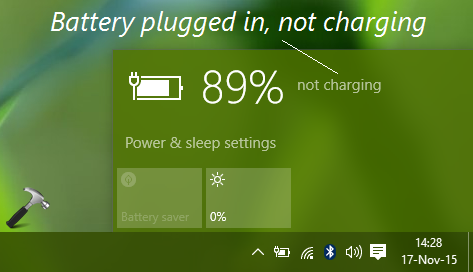
Why This Problem Happens (Laptop Not Charging But Plugged In)
If your laptop not charging but plugged in, it’s important to understand that charging isn’t just about connecting the cable. Several components work together to power your device properly:
- Charger (adapter)
- Charging cable
- Charging port (DC jack)
- Battery
- Motherboard charging circuit
- Software (drivers + BIOS)
If any one of these components fails or behaves abnormally, your system may show the “laptop not charging but plugged in” issue.
If any one of these fails or behaves abnormally, you’ll see the “not charging” message.

Start With the Basics (Most People Skip This)
Check the Charger Carefully
This sounds obvious, but it’s where many problems start.
- Inspect the cable for bends or cuts
- Look at the connector tip — is it loose or burnt?
- Move the pin slightly while plugged in
If charging starts and stops when you move the cable, that’s a clear sign the issue is physical.
If you have access to another charger of the same rating, test it. That’s the fastest way to confirm.
Power Reset — Simple but Effective
This step fixes many hidden electrical glitches.
- Shut down the laptop completely
- Remove the charger
- Remove the battery (if removable)
- Hold the power button for 30–40 seconds
- Reconnect everything and turn it on
What this does is discharge residual electricity inside the motherboard and reset internal circuits.
Battery Driver Issue (Common in Windows)
Sometimes Windows itself causes the problem.
Go to Device Manager:
- Expand “Batteries”
- Uninstall:
- Microsoft AC Adapter
- Microsoft ACPI Battery
Restart your laptop. Windows will reinstall them automatically.
This fix works surprisingly often, especially after updates.
Check for Overheating
Laptops are designed to stop charging if temperatures go too high.
You might notice:
- Laptop gets very hot
- Fan running loudly
- Charging pauses randomly
Fix:
- Clean air vents
- Use laptop on a hard surface
- Avoid using it on bed or blanket
If cooling improves, charging may return to normal.
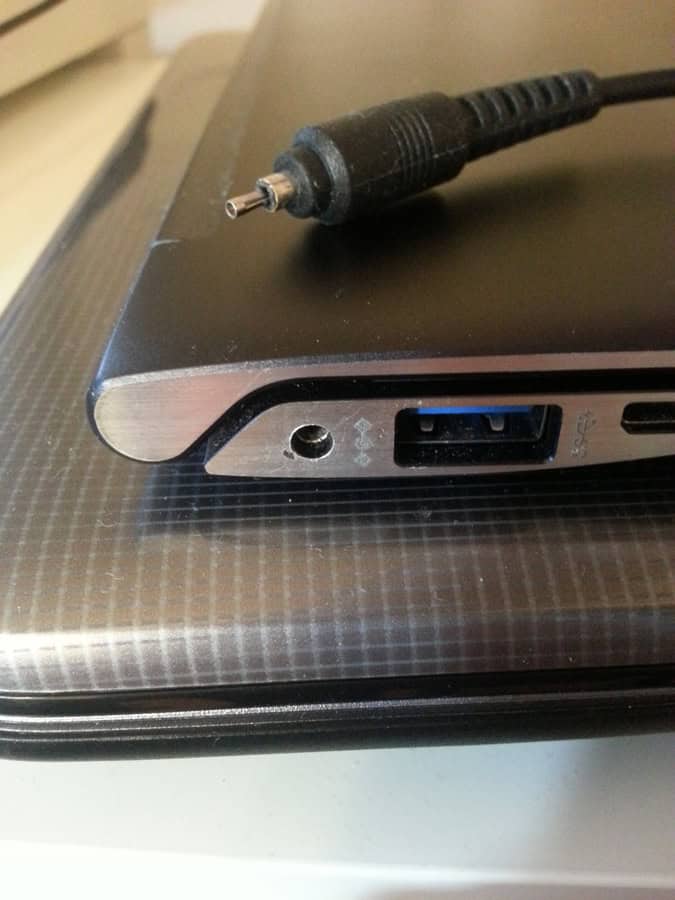
Charging Port Problem (Very Common)
This is one of the most frequent hardware issues.
Signs:
- Charger feels loose
- You have to adjust angle to make it work
- Charging disconnects easily
The internal pin of the charging port wears out over time.
Repair cost is usually reasonable compared to replacing the entire charger or motherboard.
BIOS Issues (Less Common but Possible)
BIOS controls hardware-level behavior, including charging.
If your laptop recently updated or reset:
- Charging logic may glitch
Solution:
- Visit your laptop manufacturer’s website
- Download latest BIOS update
- Install carefully (don’t interrupt power)
When the Battery Is the Problem
Batteries don’t last forever.
Signs of battery failure:
- Stuck at 0% or 100%
- Drains instantly
- Laptop shuts down when unplugged
If your laptop is 2–4 years old, battery degradation is normal.
When It’s a Motherboard Issue
If none of the above works, the issue may be deeper:
- Charging IC failure
- Power circuit damage
This usually requires a technician.
Practical Advice (What I Recommend)
Follow this order:
- Check charger
- Do power reset
- Reinstall drivers
- Check overheating
- Inspect charging port
Only after that, think about repair.
FAQs
Is it safe to keep using the laptop like this?
Yes, but only while plugged in. It may shut down unexpectedly.
Should I replace battery immediately?
Not unless you confirm it’s faulty.
Is repairing charging port worth it?
Yes, usually much cheaper than buying new laptop.
Final Thoughts
This issue looks serious, but most of the time it’s something simple — a cable, a driver, or a loose port.
Start small, test properly, and you can often fix it yourself without spending money.