
How to Speed Up a Slow Windows PC Without Spending Money

Quick Answer
How to Speed Up a Slow Windows PC: If your Windows PC feels slow, you can improve performance by increasing virtual memory, cleaning temporary files, running Disk Cleanup, and removing unnecessary background processes. These proven methods can help speed up a slow Windows PC, especially on low-end systems that struggle with multitasking, startup times, and everyday productivity tasks.
Table of Contents
Is Your Computer Running Slower Than Before?
Few things are more frustrating than waiting several minutes for a program to open or watching your computer freeze while performing simple tasks.
Many people assume they need to buy a new laptop or upgrade their RAM immediately. However, that’s not always true.
In many cases, Windows systems accumulate temporary files, cache data, and unnecessary background processes that gradually reduce performance. The good news is that a few simple adjustments can make your PC noticeably faster without spending any money.
In this guide, you’ll learn practical ways to improve Windows performance using built-in tools available on almost every computer.
Why Does a PC Become Slow Over Time?
Even a powerful computer can become sluggish after months or years of use.
Common reasons include:
- Temporary files filling storage
- Insufficient available memory
- Background applications consuming resources
- Fragmented storage on older drives
- Excessive startup programs
- Unused cache and system files
Fortunately, most of these problems can be fixed with basic maintenance.
Method 1: Increase Virtual Memory (Virtual RAM)
One of the easiest ways to improve performance on a low-RAM computer is to increase virtual memory.
What Is Virtual Memory?
Virtual memory is a portion of your storage drive that Windows uses as additional memory when physical RAM becomes full.
While it is not as fast as actual RAM, it can help reduce lag when multiple applications are open simultaneously.
How to speed up a slow windows PC by Increasing Virtual Memory in Windows
Step 1
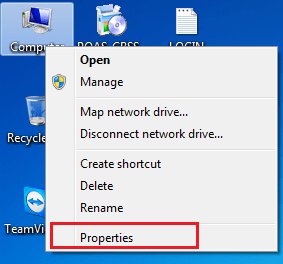
Open This PC and access System Properties.
Step 2
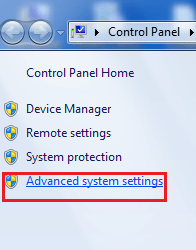
Select Advanced System Settings.
Step 3
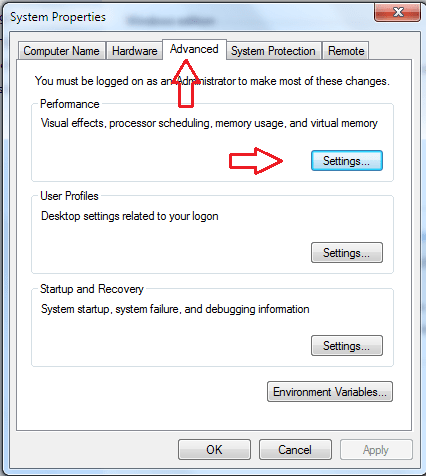
Under the Advanced tab, click Settings in the Performance section.
Step 4
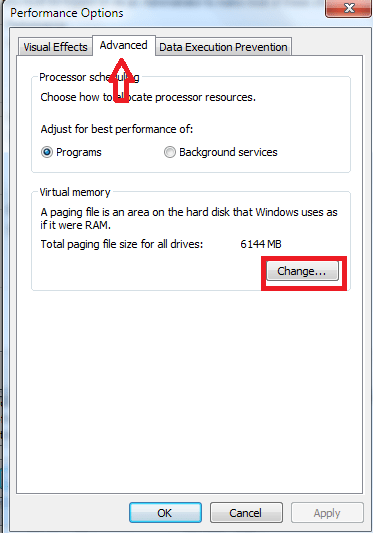
Navigate to Advanced → Virtual Memory → Change.
Step 5
Uncheck:
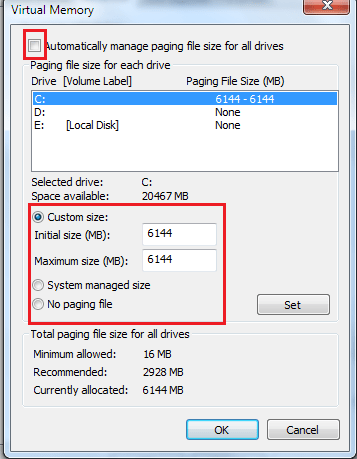
Automatically manage paging file size for all drives
Then set a custom size based on your available storage.
Pro Tip
For systems with 4GB RAM or less, increasing virtual memory can improve stability when browsing, editing documents, or running multiple applications simultaneously.
Important Note
Virtual memory is not a replacement for physical RAM. However, it can help reduce performance bottlenecks on older systems. If your computer still struggles after increasing virtual memory, the biggest performance upgrade is usually adding more RAM. Upgrading from 4GB to 8GB or 16GB can dramatically improve multitasking and responsiveness.
| PC Problem | Best Solution | Expected Improvement | Action |
|---|---|---|---|
| Slow Startup | SSD Upgrade | Up to 10x Faster Boot | Check Price |
| Browser Freezing | RAM Upgrade | Smoother Multitasking | Check Price |
| Storage Full | Larger SSD | More Space & Speed | Check Price |
Method 2: Run Disk Cleanup
Disk Cleanup is one of the most overlooked Windows optimization tools.
It removes unnecessary files such as:
- Temporary files
- Recycle Bin contents
- Downloaded program files
- Cached system files
- Error reports
Removing these files frees storage space and may improve overall responsiveness.
How to speed up a slow windows PC by Running Disk Cleanup
Step 1
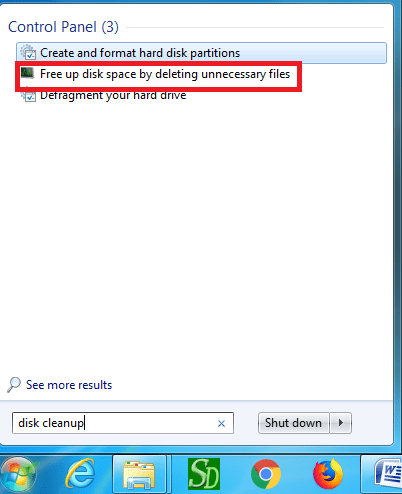
Search for Disk Cleanup in the Windows Start Menu.
Step 2
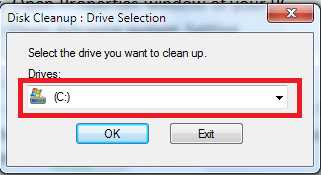
Select the drive you want to clean, typically the C: drive.
Step 3
Allow Windows to scan the drive.
Step 4
Check all removable file categories.
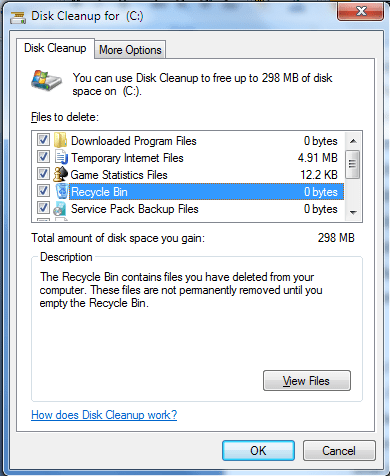
Step 5
Click OK and confirm deletion.
Benefits of Disk Cleanup
- Frees valuable storage space
- Removes unnecessary system clutter
- Helps Windows run more efficiently
- Improves SSD and HDD management
ALSO READ >>> How to Transfer Google Photos to Another Account (3 Easy Methods)
Method 3: Delete Temporary Files
Temporary files accumulate every day while using Windows.
Over time, thousands of unnecessary files can occupy storage space and affect performance.
How to speed up a slow windows PC by removing temporary files
Press:
Windows + R
Then open each of the following one at a time:
Temp Folder
temp
User Temp Folder
%temp%
Prefetch Folder
prefetch
Select all files and delete those that Windows allows you to remove.
Why This Helps
Temporary files are often no longer needed after software installation or system operations.
Removing them can:
- Free storage space
- Reduce clutter
- Improve system responsiveness
- Speed up file searches
Additional Tips to Make Windows Faster
Disable Unnecessary Startup Programs
Many applications automatically launch when Windows starts.
To disable them:
- Open Task Manager
- Go to Startup Apps
- Disable unnecessary programs
This can significantly reduce boot times.
Keep Windows Updated
Microsoft regularly releases performance improvements and bug fixes.
Updated systems generally perform better and remain more secure.
Scan for Malware
Malware often consumes system resources silently.
Use Windows Security or a trusted antivirus program to perform regular scans.
Restart Your PC Regularly
Many users leave their computers running for weeks.
Restarting clears memory usage, resets background services, and can instantly improve performance.
Common Mistakes People Make
Expecting Virtual Memory to Replace RAM
Virtual memory helps but cannot match physical RAM performance.
Deleting Important System Files
Only remove files from approved temporary locations.
Installing Random PC Booster Software
Many “one-click optimizer” applications provide little value and sometimes create additional issues.
Ignoring Storage Health
A nearly full drive can slow down a computer dramatically.
Try to keep at least 15-20% free space available.
Virtual RAM vs Physical RAM
| Feature | Virtual RAM | Physical RAM |
|---|---|---|
| Speed | Slower | Much Faster |
| Cost | Free | Requires Upgrade |
| Uses Storage Space | Yes | No |
| Performance Gain | Moderate | Significant |
| Best For | Older PCs | All Systems |
Frequently Asked Questions
Does increasing virtual memory make a PC faster?
It can improve performance when your physical RAM is frequently full. However, it won’t match the speed of adding actual RAM.
How much virtual memory should I set?
Windows usually manages it well automatically. For older systems, a custom setting based on available storage may help.
Is Disk Cleanup safe?
Yes. Disk Cleanup is a built-in Windows tool designed to safely remove unnecessary files.
Can deleting temp files damage my computer?
No. Temporary files are generally safe to remove. Some active files may be skipped automatically.
How often should I run Disk Cleanup?
Once every month is sufficient for most users.
Will these methods work on Windows 11?
Yes. The concepts remain similar across Windows 10 and Windows 11.
Should I buy more RAM instead?
If you frequently multitask or run demanding software, upgrading RAM provides the largest performance improvement.
Do PC cleaner apps actually work?
Most offer minimal benefits. Built-in Windows tools are usually enough.
Final Thoughts
A slow computer doesn’t always mean it’s time for an expensive upgrade.
Simple maintenance tasks such as increasing virtual memory, running Disk Cleanup, and deleting temporary files can make a noticeable difference, especially on older or low-end PCs.
The best approach is to combine these optimization techniques with good maintenance habits. Keep your storage clean, remove unnecessary startup programs, and regularly update Windows.
You may be surprised how much faster your computer feels after just a few minutes of optimization.





One Comment