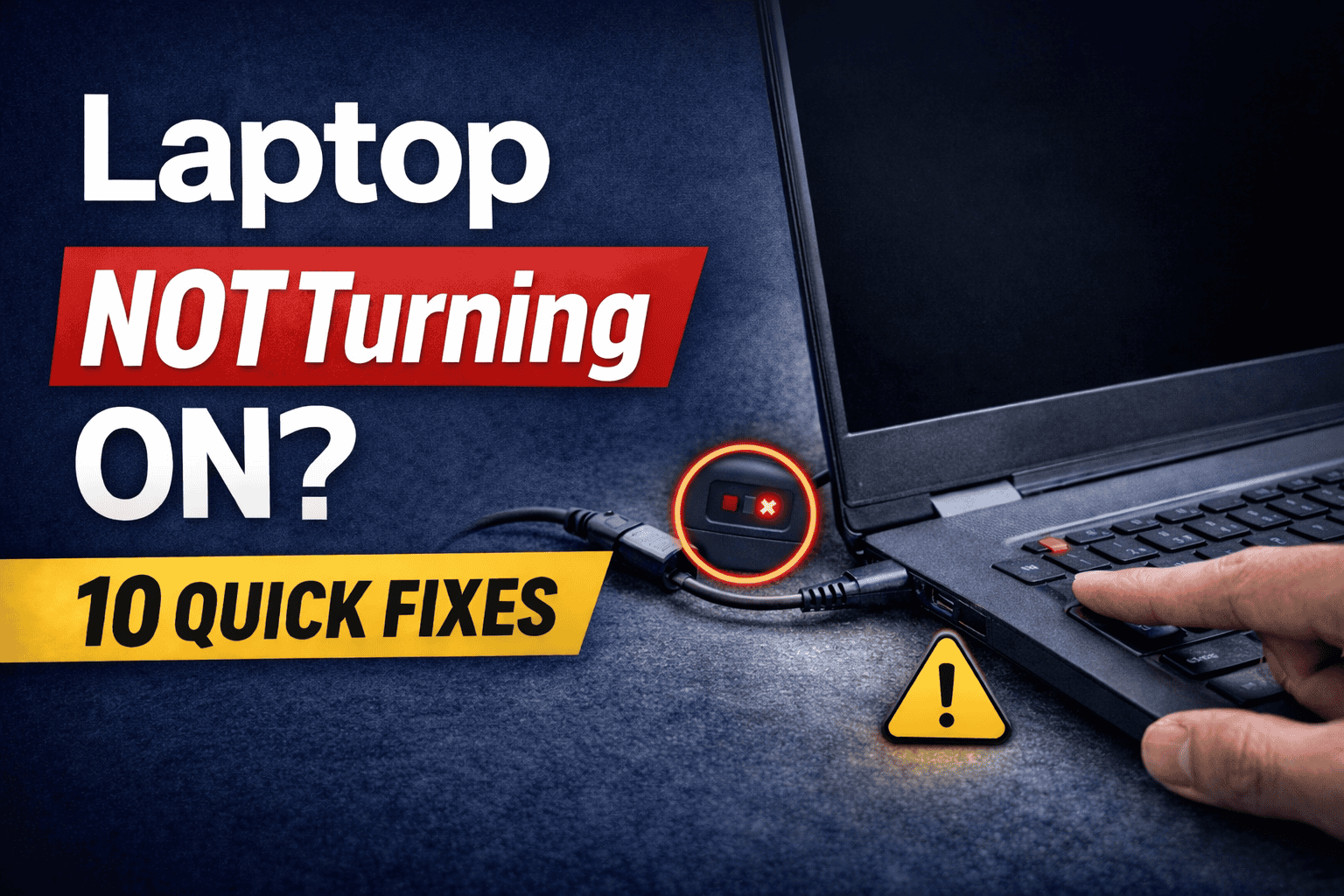
Laptop Not Powering On? 9 Quick Fixes That Actually Work (Complete Guide)

A laptop that refuses to power on can feel like a complete shutdown of your productivity. You press the power button and nothing happens—no lights, no fan, no display. Whether you use your laptop for work, study, or daily tasks, this issue can be frustrating and urgent.
The good news is that in most cases, a laptop not powering on is caused by simple issues that you can fix yourself without visiting a service center.
In this detailed guide, you will learn:
- Why your laptop is not powering on
- Quick fixes you can try immediately
- Step-by-step troubleshooting methods
- When to seek professional repair
- How to prevent this issue in the future
This guide is written in a simple and practical way so that even beginners can follow it easily.
Table of Contents
Why Your Laptop Is Not Powering On
Before jumping to solutions, it is important to understand the possible causes.
Common Reasons
- Dead or faulty battery
- Loose or damaged charging cable
- Faulty power adapter
- Motherboard issues
- RAM or hardware failure
- Power button malfunction
- Overheating or internal damage
Understanding the cause helps you apply the right fix faster.
Quick Check Before You Start
Before trying any fix, perform these basic checks:
- Ensure the charger is properly connected
- Check if the power socket is working
- Look for any LED indicator on the laptop
- Try another charger if available
If everything looks fine and the laptop still does not turn on, move to the fixes below.
Fix 1: Perform a Hard Reset (Power Drain Method)

This is one of the most effective methods.
Steps
- Remove the battery (if removable)

2. Press and hold the power button for 30–40 seconds

3. Try turning on the laptop
Why This Works
It drains residual electrical charge and resets internal circuits.
Also Read >>> Laptop Not Charging But Plugged In (Real Causes and Fixes That Actually Work)
Fix 2: Check the Power Adapter and Cable
A faulty charger or damaged charging cable is one of the most common reasons behind the laptop plugged in but not charging problem. If the laptop is not receiving stable power from the adapter, the battery may slowly drain even while connected to the charger. In some situations, continuous charging issues can eventually lead to the laptop not powering on or showing no charging indicator at all.
Carefully inspect the charger cable, power brick, and charging connector for any visible damage. Look for cuts, frayed wires, bent charging pins, loose connections, or overheating signs near the adapter. Even a slightly damaged cable can interrupt proper power delivery to the laptop battery.
If possible, test the charger output using a multimeter to verify whether the adapter is supplying the correct voltage. You can also try using another compatible charger to confirm whether the problem is caused by the adapter itself.

A damaged or broken charging cable is one of the most common reasons behind a laptop plugged in but not charging issue. In many cases, the laptop may stop receiving proper power, causing the battery to drain completely. If ignored for a long time, this can even lead to the laptop not powering on or showing no signs of life. Always inspect the charger cable and adapter for cuts, bends, or loose connections.

If possible, check the charger output and charging pin voltage using a measuring tool called a multimeter. The voltage readings should match the specifications mentioned on the original laptop adapter label. Incorrect or unstable voltage readings may indicate a faulty charger, damaged cable, or loose charging connector.
If you are using a third-party charger, always verify that its power rating, voltage, and current output are fully compatible with your laptop’s original OEM charger specifications. Using an incompatible or low-quality charger can lead to slow charging, battery detection issues, overheating, or even cause the laptop plugged in but not charging problem.


What to Check to fix laptop not powering on
- Damaged or broken charging cable

- Bent or loose charging connector pin

- Overheating power adapter
- Loose charging port or charging jack connection
- Burning smell or unusual adapter noise
Solution
- Try another compatible laptop charger
- Replace a damaged charging cable or adapter
- Avoid using duplicate or low-quality chargers
- Ensure the charger is firmly connected to both the laptop and power outlet
- Clean dust from the charging port carefully
READ ALSO >>> Dell 65W USB Type-C Charger Review (2026) – Complete Buying Guide
Fix 3: Inspect Battery Issues to fix laptop not powering on

Try to inspect the physical condition of your laptop battery carefully. If your laptop comes with a removable battery, checking it becomes much easier. For laptops with a non-removable battery, examine the bottom panel closely and look for unusual bulging or swelling. A damaged or swollen battery can prevent proper power delivery and may even cause the laptop not powering on issue.

A laptop connected to a charger but still displaying a low battery warning symbol on the screen. This usually means the laptop is not receiving enough power from the charging adapter or the battery is failing to charge properly. A damaged charging cable, faulty power adapter, loose charging port, or degraded battery health can commonly cause the laptop plugged in but not charging issue.
If your laptop shows a similar low battery icon even while connected to the charger, inspect the adapter, charging cable, and charging port carefully for any visible damage or overheating signs. You can also try another compatible charger to check whether the problem is caused by the power adapter or the laptop hardware itself. Ignoring charging issues for a long time may eventually lead to the laptop not powering on completely.


Try reinstalling the charging adapter driver, as it can often fix the laptop plugged in but not charging issue caused by Windows glitches or software-related power management bugs. Corrupted battery or AC adapter drivers may prevent the laptop from detecting the charger correctly, even when the power cable is connected properly. Reinstalling the driver refreshes the charging configuration and can restore normal battery charging functionality.

A dead battery can prevent the laptop from turning on.
Steps
- Remove the battery

- Plug in charger
- Try powering on
If it works, your battery is faulty and needs replacement.
READ ALSO >>> Laptop Not Charging But Plugged In (Real Causes and Fixes That Actually Work)
Fix 4: Check Display Issues to fix laptop not powering on
Sometimes the laptop is ON, but the screen is not working.
Signs
- Fan running
- Keyboard lights on
- No display
Solution
- Connect to an external monitor
- Increase brightness
- Check display cable
Fix 5: Reseat RAM (Advanced Fix)


Loose or faulty RAM can stop your laptop from booting.
Steps
- Open back panel
- Remove RAM carefully
- Clean with dry cloth
- Reinsert properly
Result
Improves hardware connection and resolves boot failure.
READ ALSO >>> WiFi Connected But No Internet? Fix It in 2 Minutes (2026 Complete Guide)
Fix 6: Check for Overheating
Overheating can cause the system to shut down completely.
Signs
- Laptop was very hot before shutdown
- Fan noise was loud
Solution
- Let the laptop cool down
- Clean vents
- Use cooling pad
Fix 7: Remove External Devices
External devices can interfere with startup.
Devices to Remove
- USB drives
- External hard disks
- Mouse/keyboard
Then try powering on again.
Fix 8: Check the Power Button
Sometimes the laptop not powering on issue is caused by a faulty or stuck power button. Dust buildup, physical damage, or a loose internal connection can prevent the button from working properly. Press the power button firmly a few times and check whether it feels unusually loose or stuck. If your laptop still shows no response, the power button or its internal cable may need professional inspection or replacement.
Signs
- No response when pressed
- Loose or stuck button
Solution
- Press firmly
- Try multiple times
- Seek repair if damaged
Fix 9: Check for BIOS or Motherboard Issues
If none of the previous troubleshooting methods work, the laptop not powering on issue may be related to a serious internal hardware failure. In many situations, corrupted BIOS settings, failed firmware updates, or motherboard damage can cause the laptop not powering on problem and prevent the system from starting normally. Sometimes, the laptop not powering on issue may also occur due to a faulty power IC or short-circuited motherboard components.
Possible Causes
- BIOS corruption or failed firmware update
- Motherboard or power IC failure
- Short circuit or damaged internal hardware components
Solution
At this stage, professional diagnosis is strongly recommended. If the laptop not powering on issue still continues after trying all troubleshooting methods, visit an authorized service center or experienced laptop technician to inspect the motherboard, BIOS, and other internal hardware components properly. In many cases, a persistent laptop not powering on problem may indicate deeper motherboard or power circuit damage that requires expert repair.
When to Visit a Service Center
You should seek professional help if:
- No LED light at all
- Burning smell
- Physical damage
- Water exposure
Cost of Repair (India Estimate)
- Charger replacement: ₹800 – ₹2000
- Battery replacement: ₹1500 – ₹4000
- Motherboard repair: ₹3000 – ₹8000
How to Prevent Laptop Power Issues
1. Use the Original Charger
Always use the original laptop charger or a certified replacement adapter. Cheap or incompatible chargers can damage the battery and may eventually cause the laptop not powering on issue.
2. Avoid Overcharging
Keeping the laptop plugged in continuously for long periods can reduce battery lifespan. Unplug the charger after the battery reaches full charge whenever possible.
3. Keep Your Laptop Clean
Dust accumulation inside the laptop can block airflow and cause overheating. Regular cleaning helps maintain proper cooling and stable power performance.
4. Perform Regular Maintenance
Check your laptop’s battery health and charging condition periodically. Updating drivers and monitoring hardware condition can help prevent unexpected power-related problems.
FAQ Section
Why is my laptop not turning on at all?
It could be due to battery failure, charger issues, or internal hardware problems.
How do I fix a dead laptop not powering on?
Try hard reset, check charger, remove battery, and inspect RAM.
Can a laptop be repaired if it won’t turn on?
Yes, most issues are repairable unless the motherboard is completely damaged.
Is it a battery or charger problem?
Test with another charger or remove battery to identify the issue.
Also Read >>> How to Completely Remove Virus and malware from Windows PC
Final Thoughts
A laptop not powering on is a frustrating but very common problem faced by many users. Fortunately, in most situations, the issue can be resolved with simple troubleshooting methods such as checking the charger, inspecting the battery, or performing a hard reset. If the laptop still does not turn on, advanced fixes like reseating the RAM, disconnecting faulty hardware, or checking internal components may help identify the root cause.
By carefully following the troubleshooting steps explained in this guide, you can diagnose the laptop not powering on issue more effectively and potentially restore your laptop without spending money on unnecessary repairs or replacements.