WiFi Connected But No Internet? 10 Practical Fixes That Work (2026)

WiFi connected but no internet is one of those problems that feels confusing at first: your phone shows a strong signal, but a page will not load and your apps keep timing out. The important detail is that Wi-Fi and internet access are not the same thing. Your device may be talking to the router just fine while the router has lost its connection to your internet provider. If the connection is stable but the computer still feels sluggish, these tips can help you speed up a slow Windows PC.
Before changing any settings, try one quick check. Connect another phone, laptop or tablet to the same Wi-Fi network. Are all of them offline, or is it just one device? That answer points you in the right direction: a problem on every device usually means the router, modem or ISP needs attention; a problem on just one device is more likely to be its own network settings.
This guide walks through the checks in a sensible order, from a simple reconnect to DNS and Windows network troubleshooting. Start with the low-risk steps and move on only when needed. You do not need to change every setting on the page; stop as soon as your connection is working again.
Table of Contents
Why does WiFi connected but no internet happen?
Think of your home network as two separate links. The first is the Wi-Fi connection between your phone or computer and the router. The second is the router’s connection out to your internet provider. The Wi-Fi icon only tells you about the first link. So when the provider connection drops, your device can stay connected to the router and still show full signal. It is also why local tasks, such as sharing files between devices on your home network, can sometimes continue even when the internet is unavailable.
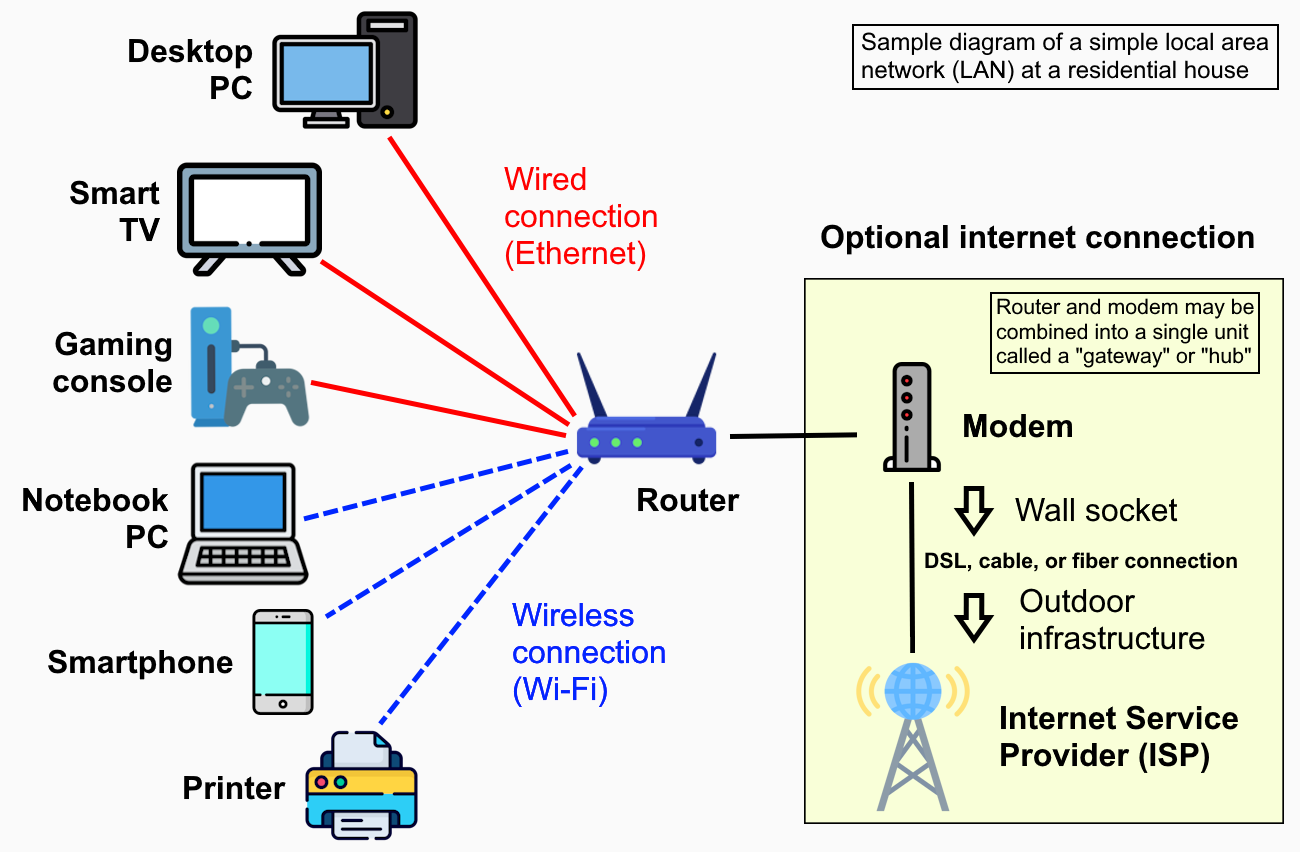
When this happens, the cause is usually somewhere in one of these areas:
- ISP outage or service issue: your provider may have an outage, account issue, or line fault.
- Modem or router problem: the router is powered on but its internet/WAN connection is down.
- DNS failure: your device has a connection but cannot translate website names into IP addresses.
- IP address or DHCP problem: the device has not received a usable network configuration from the router.
- Device settings: a VPN, proxy, security app, outdated driver, or temporary software fault is interfering.
- Network congestion or weak equipment: a heavily loaded or malfunctioning router may provide an unstable connection.
First, identify where the problem is
Start by finding out whether the issue is limited to one device. Check a second phone or computer on the same network before you touch DNS settings, reset a network profile or restart equipment. It is a small test, but it can save a lot of unnecessary troubleshooting.
Quick visual check: one device or the whole network?
Use the symptoms below as a starting point. They are clues rather than absolute diagnoses, but they help narrow down what to check next.
| What you notice | Possible cause | Start here |
|---|---|---|
| Every device has no internet | ISP, modem, router, or WAN connection | Check router status and contact your ISP if needed |
| Only one phone or computer is affected | Device Wi-Fi, IP, DNS, VPN, or driver settings | Reconnect that device and follow its troubleshooting steps |
| Some apps work but websites do not | DNS, filtering, browser, or proxy issue | Test another browser and check DNS/VPN settings |
| Connection returns after a router restart | Temporary router or WAN fault | Monitor the connection and check firmware or ISP line stability |
10 ways to fix Wi-Fi connected but no internet
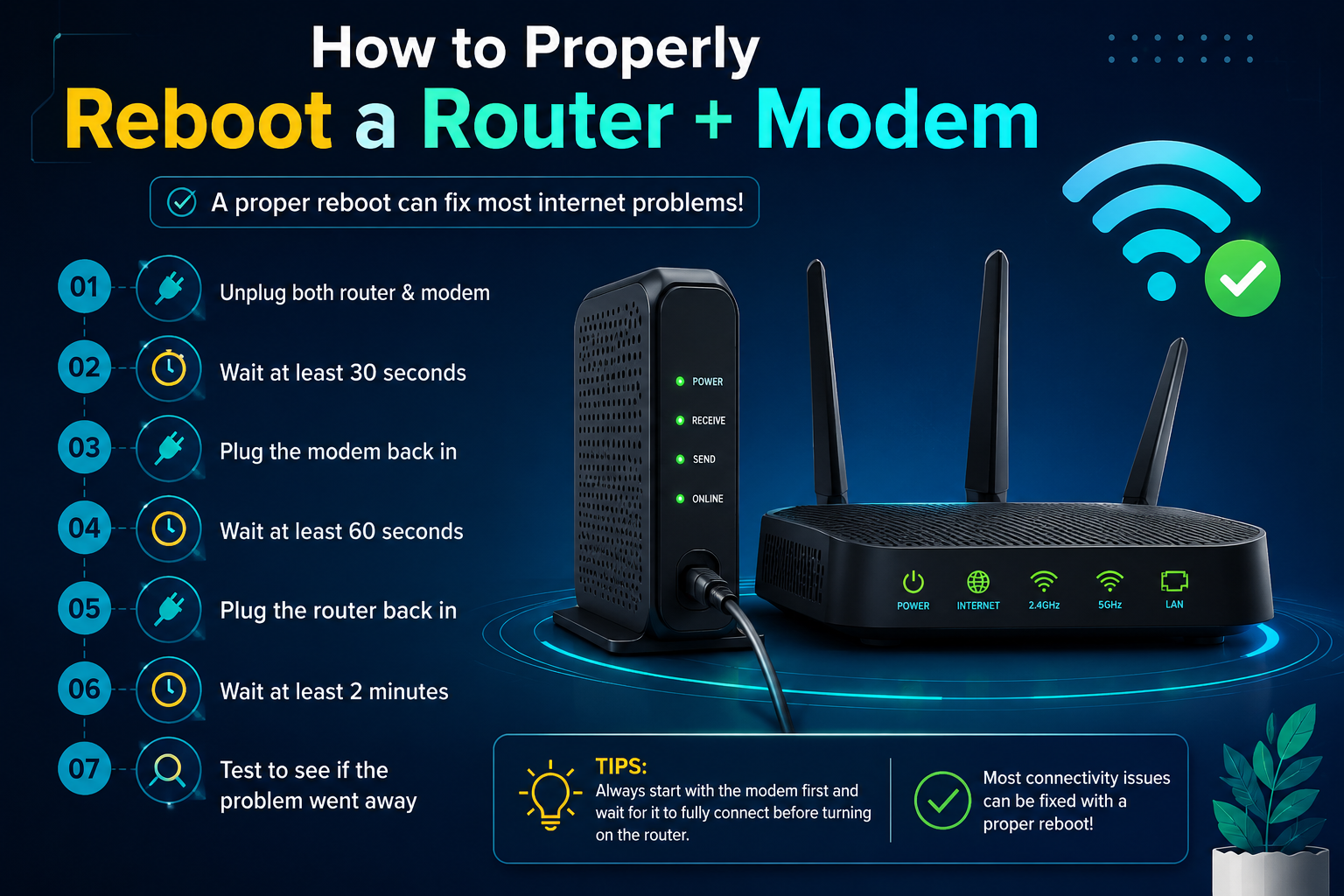
1. Restart your modem and router correctly
A restart is worth trying when several devices have lost internet access at once. It can clear a temporary router lock-up and prompt the modem or optical network terminal (ONT) to establish its connection again. It will not bring back a provider service that is down, but it is a sensible first step before changing more complicated settings.
- Save any work that depends on your internet connection.
- Turn off the router. If you have a separate modem or ONT, turn that off too.
- Wait about 30 seconds.
- Turn the modem or ONT back on first and wait for its status lights to settle.
- Turn the router back on and allow it to reconnect.
- Test the connection on two devices.
On a fibre connection, leave the fibre cable and connector alone. Do not bend the cable sharply, unplug the optical connector or look into its end. If the ONT shows an LOS alarm, or its normal connection lights do not return, report the fault to your internet provider.
2. Turn Wi-Fi or airplane mode off and on
When the problem affects only your phone or laptop, refresh its wireless connection first. Turn Wi-Fi off, wait a few seconds and switch it back on. On a phone, briefly turning Airplane Mode on and then off can achieve the same thing. This makes the device reconnect without changing settings for everyone else in the house.
3. Forget the network and reconnect
Sometimes a device keeps an old or damaged saved network profile. Removing that profile and joining the network again gives the device a fresh set of connection details. Try this when other devices work normally but one phone or computer does not.
- Open your device’s Wi-Fi settings.
- Select the affected network and choose Forget or Remove.
- Select the network again.
- Enter the current Wi-Fi password and reconnect.
Check that you know the current Wi-Fi password before removing the saved network. The wording and location of this option vary: Android usually offers Forget, while other devices may say Remove or use a slightly different menu.
4. Check your internet service provider
If every device connected to the router has stopped reaching the internet, check your provider’s service status before changing individual device settings. Use mobile data to open the ISP’s app or outage page. A local service interruption, account issue or line fault can leave the home Wi-Fi network visible even though there is no usable internet connection.
When you contact support, describe what the router or ONT is showing. Mention whether the Internet or WAN indicator is off, flashing or showing an alarm, and report an LOS warning on fibre equipment. Indicator meanings differ between models, so give the light’s label and behaviour rather than relying on its colour alone.
5. Check Private DNS on Android
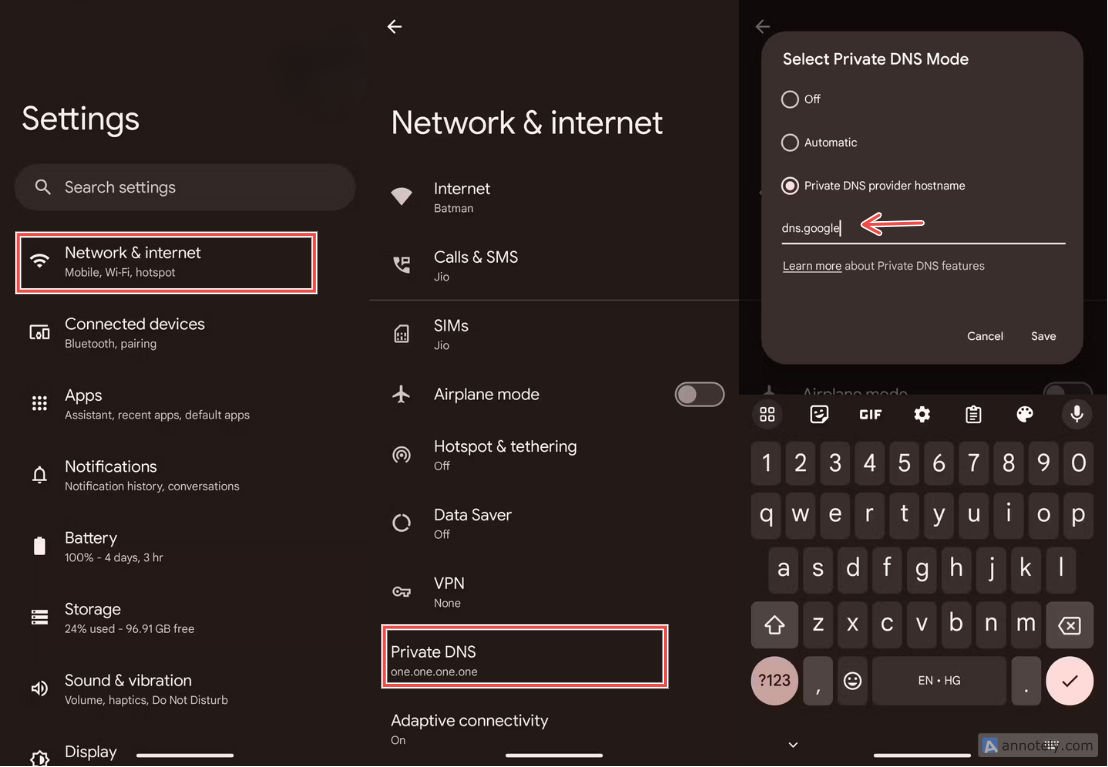
DNS is the service that looks up a website’s domain name and finds the IP address your device needs to connect. When DNS is misconfigured or the chosen resolver cannot be reached, a website may fail to open even though the Wi-Fi link itself is fine. That is why a DNS issue can look like a complete internet failure. On Android 9 and newer, Private DNS uses a provider hostname, not the numeric IPv4 addresses used in many manual DNS settings.
As a test, you can try a recognised Private DNS provider. This is not a fix for an ISP outage or a broken WAN connection, so only change it when the other checks suggest a DNS problem.
- Open Settings and search for Private DNS.
- Choose Private DNS provider hostname.
- Enter
dns.googlefor Google Public DNS orone.one.one.onefor Cloudflare. - Save the setting and test a few websites.
After saving, try opening a few different websites. If they still fail, or the phone reports that the private DNS server cannot be reached, go back to the same menu and choose Automatic. Menu names can vary by Android manufacturer, and changing DNS will not restore a disconnected fibre line or an offline router.
6. Check DNS settings on Windows 10 or Windows 11
On a Windows PC, DNS is worth checking when other devices can browse normally but that computer cannot. Before changing anything, note whether DNS is set to automatic or manually configured. You can test Google Public DNS by entering 8.8.8.8 and 8.8.4.4 as the IPv4 DNS servers. Treat this as a temporary diagnostic, not a guaranteed solution.
Open Settings → Network & internet, select your Wi-Fi connection and find the DNS server assignment. Choose Edit, switch to Manual, enable IPv4 and enter the addresses above. Save the change and test a few sites. If there is no improvement, return the setting to Automatic or restore the values you recorded. Windows labels can differ slightly between releases.
Before using Command Prompt: the following network commands are intended for Windows. Run them one at a time, and be aware that releasing and renewing the IP address will briefly interrupt the connection.
7. Temporarily disable VPN or proxy settings
A VPN or proxy changes the route your traffic takes. Security and filtering apps can also block certain connections. If the problem began after enabling a VPN, proxy or filtering feature, disconnect it briefly and test again. This is especially useful when other devices on the same Wi-Fi are working normally.
- Disconnect the VPN using its normal app controls.
- On Windows, review Settings → Network & internet → Proxy and check whether a manual proxy is enabled.
- Do not disable your firewall or security protection permanently.
- Reconnect the VPN after testing if you need it for privacy or work.
8. Renew the IP address and flush DNS on Windows
Windows normally receives an IP address and other network details from the router using DHCP. If that information is stale or incomplete, asking for a fresh address may help. Open Command Prompt and enter these commands one at a time:
ipconfig /release
ipconfig /renew
ipconfig /flushdns
ipconfig /release drops the current IPv4 configuration, ipconfig /renew asks the router’s DHCP server for another address, and ipconfig /flushdns clears Windows’ local DNS cache. A brief disconnect during the first two commands is expected. If a command returns an error, read the message rather than repeating it blindly.
If the basic checks do not help, Microsoft also documents steps for resetting Winsock and the TCP/IP stack. Those changes go deeper into Windows networking, so follow Microsoft’s current instructions and use them only after the simpler checks have failed.
9. Update your device software or network driver
If just one Windows computer keeps dropping the connection, its wireless driver may be outdated or damaged. Check Windows Update first, then the support page for your laptop or Wi-Fi adapter manufacturer. Use the driver intended for your exact model; avoid third-party driver download sites.
For phones and tablets, check for system updates when you have another working connection, such as mobile data. An update is not a guaranteed fix, but it can address known software or compatibility problems.
10. Reset network settings on the affected device
Keep a network reset as a later option, especially when the rest of your devices are working and the problem is isolated to one phone or computer. It can clear incorrect network configuration, but it also removes some saved connection details.
Read the confirmation screen before proceeding. Depending on the device, a reset may remove saved Wi-Fi networks and passwords, VPN settings or other network preferences. Make sure you have the Wi-Fi password and any work or VPN setup details needed to reconnect.
Advanced router troubleshooting
Understand the router’s Internet, WAN, and LOS indicators
Look at the labels beside the router and ONT indicators, then compare them with the manual for that exact model. The Internet or WAN light can provide a clue about the upstream connection. On fibre equipment, an LOS alarm often indicates that the optical signal has been lost. Light colours and blink patterns are not standard across all brands, so the label and model-specific guide matter more than colour alone.
Check for an IP address problem
On Windows, open Command Prompt and run ipconfig. Under the active Wi-Fi adapter, look for the IPv4 address and Default Gateway. An address beginning with 169.254 usually means Windows has not received a normal IPv4 address from the router through DHCP. If you deliberately use a static IP address, do not replace it with guessed values.
Factory-reset the router only as a last resort
A factory reset is very different from simply restarting the router. It wipes saved settings, which may include your Wi-Fi name and password, ISP login, VLAN details, port forwarding and parental controls. Some fibre services also rely on provider-specific configuration that is not easy to recreate yourself.
Before pressing the reset button, contact your ISP or whoever configured the router and make sure you have the details needed to set it up again. A factory reset will not repair an outage or a damaged line, so it should never be the first response to an Internet light that has gone off.
How to prevent Wi-Fi connected but no internet problems
- Keep router firmware current: use the router manufacturer’s or ISP’s official update process.
- Place the router sensibly: keep it ventilated and away from avoidable sources of interference.
- Secure your network: use a strong Wi-Fi password and modern security supported by your devices.
- Review connected devices: investigate unknown devices and pause unnecessary heavy downloads if the network is overloaded.
- Keep a record of ISP details: save the support number and account information needed to report a service fault.
- Avoid unnecessary DNS changes: use automatic settings unless you have a reason to test another resolver. This can help prevent recurring wifi connected but no internet problems caused by incorrect DNS settings.
Frequently asked questions
Why does my Wi-Fi say connected but no internet?
Your device has joined the router, but either the router or the device cannot reach the wider internet. Common causes include an ISP outage, a modem or router issue, DNS trouble or an incorrect network setting on the device.
How do I fix Wi-Fi connected but no internet quickly?
Check another device on the same Wi-Fi first. When all devices are offline, look at the modem, ONT, router and ISP service. When only one device is affected, reconnect it to Wi-Fi and then check its VPN, proxy and DNS settings.
Why does my phone connect to Wi-Fi but apps do not work?
The phone may still be connected to the router even though the internet connection is down. A VPN, Private DNS provider or filtering app can also interfere with particular apps. Try a website in the browser and another app; if you recently changed Private DNS, temporarily switch it back to Automatic and test again.
Is Wi-Fi connected but no internet a router hardware problem?
Not necessarily. The router may have lost its connection to the ISP, the WAN cable may be loose, or DNS and device settings may be causing the problem. Check more than one device and the router’s model-specific status indicators before assuming the hardware has failed.
Why do all devices show connected but have no internet?
When every device on the same network is affected, the issue is more likely to be with the router’s connection to the modem or ONT, or with the ISP service itself. Check the equipment status and provider outage information before changing settings on individual devices.
Should I factory-reset my router if there is no internet?
Usually, no. A factory reset removes configuration and can make the connection harder to restore. Check the cables, equipment indicators and ISP service first. Reset only when your provider or the router manufacturer recommends it and you have the details needed to configure the device again.
Final thoughts
When Wi-Fi is connected but nothing online will load, the signal icon alone does not tell you where the fault is. Test a second device first. If all devices are offline, follow the router, modem or ISP path. If just one device is affected, concentrate on its saved Wi-Fi profile, IP address, DNS, VPN and driver.
Work from the simplest checks towards the more disruptive ones. A reconnect or equipment restart is easy to undo; a network reset removes saved settings, and a router factory reset can erase the configuration needed to get your service back. There is no benefit in taking that last step until you know it is necessary.
Helpful technical references
- Microsoft: Fix Wi-Fi connection issues in Windows
- Google: Configure Google Public DNS, including Android Private DNS
- Cloudflare: Set up 1.1.1.1 on Android