Laptop Not Powering On? 9 Quick Fixes That Actually Work (Complete Guide)
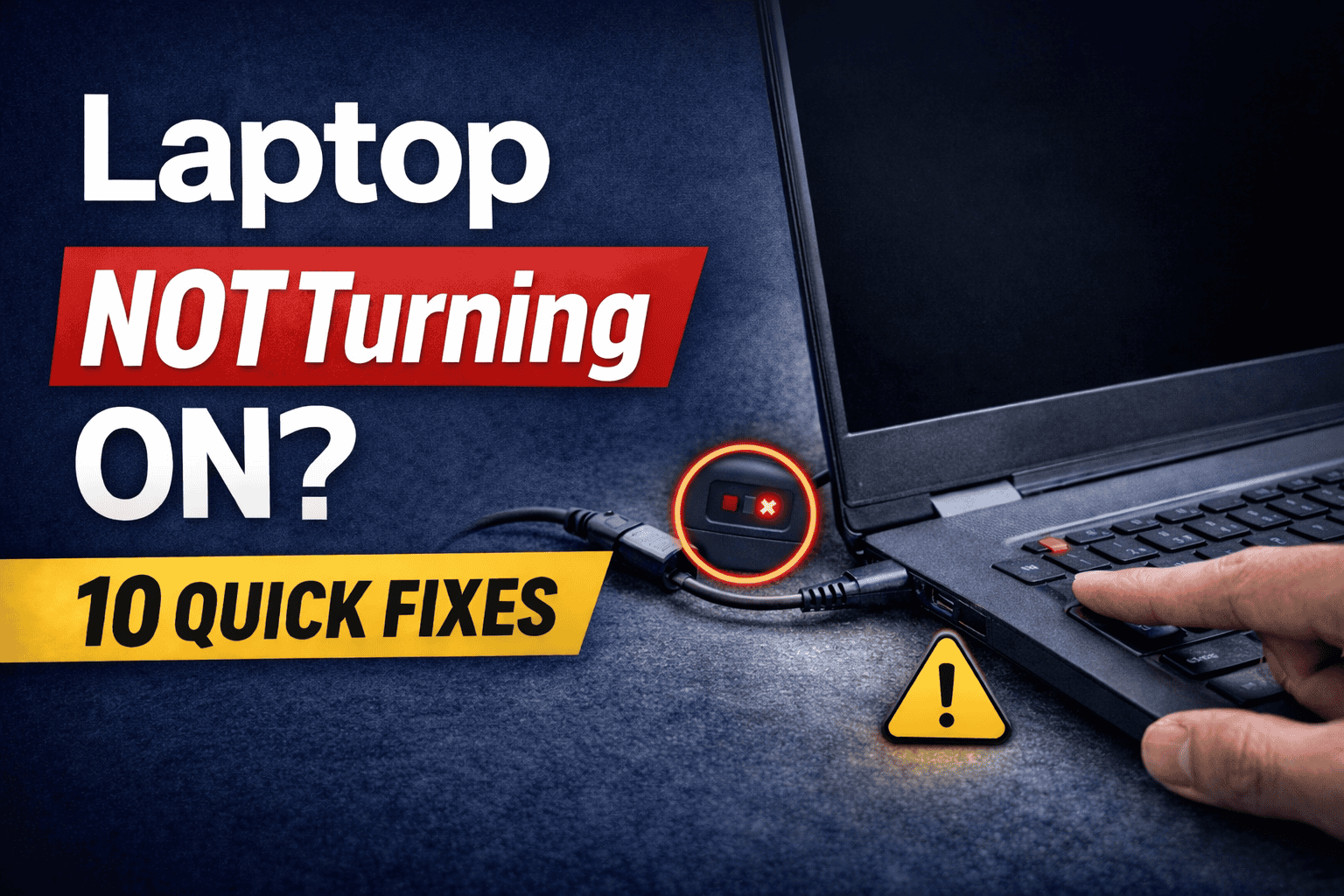
A laptop that refuses to power on can feel like a complete shutdown of your productivity. You press the power button and nothing happens—no lights, no fan, no display. Whether you use your laptop for work, study, or daily tasks, this issue can be frustrating and urgent.
The good news is that in most cases, a laptop not powering on is caused by simple issues that you can fix yourself without visiting a service center.
In this detailed guide, you will learn:
- Why your laptop is not powering on
- Quick fixes you can try immediately
- Step-by-step troubleshooting methods
- When to seek professional repair
- How to prevent this issue in the future
This guide is written in a simple and practical way so that even beginners can follow it easily.
Why Your Laptop Is Not Powering On
Before jumping to solutions, it is important to understand the possible causes.
Common Reasons
- Dead or faulty battery
- Loose or damaged charging cable
- Faulty power adapter
- Motherboard issues
- RAM or hardware failure
- Power button malfunction
- Overheating or internal damage
Understanding the cause helps you apply the right fix faster.
Quick Check Before You Start
Before trying any fix, perform these basic checks:
- Ensure the charger is properly connected
- Check if the power socket is working
- Look for any LED indicator on the laptop
- Try another charger if available
If everything looks fine and the laptop still does not turn on, move to the fixes below.
Fix 1: Perform a Hard Reset (Power Drain Method)


This is one of the most effective methods.
Steps
- Remove the charger
- Remove the battery (if removable)
- Press and hold the power button for 30–40 seconds
- Reconnect the charger (without battery)
- Try turning on the laptop
Why This Works
It drains residual electrical charge and resets internal circuits.
Fix 2: Check the Power Adapter and Cable


A faulty charger is one of the most common reasons.
What to Check
- Damaged cable
- Bent connector pin
- Overheating adapter
Solution
- Try another compatible charger
- Replace damaged adapter
Fix 3: Inspect Battery Issues


A dead battery can prevent the laptop from turning on.
Steps
- Remove the battery
- Plug in charger
- Try powering on
If it works, your battery is faulty and needs replacement.
Fix 4: Check Display Issues
Sometimes the laptop is ON, but the screen is not working.
Signs
- Fan running
- Keyboard lights on
- No display
Solution
- Connect to an external monitor
- Increase brightness
- Check display cable
Fix 5: Reseat RAM (Advanced Fix)


Loose or faulty RAM can stop your laptop from booting.
Steps
- Open back panel
- Remove RAM carefully
- Clean with dry cloth
- Reinsert properly
Result
Improves hardware connection and resolves boot failure.
Fix 6: Check for Overheating
Overheating can cause the system to shut down completely.
Signs
- Laptop was very hot before shutdown
- Fan noise was loud
Solution
- Let the laptop cool down
- Clean vents
- Use cooling pad
Fix 7: Remove External Devices
External devices can interfere with startup.
Devices to Remove
- USB drives
- External hard disks
- Mouse/keyboard
Then try powering on again.
Fix 8: Check Power Button
Sometimes the issue is with the button itself.
Signs
- No response when pressed
- Loose or stuck button
Solution
- Press firmly
- Try multiple times
- Seek repair if damaged
Fix 9: BIOS or Motherboard Issue
If none of the above works, the issue may be internal.
Possible Causes
- BIOS corruption
- Motherboard failure
Solution
- Visit service center
- Professional diagnosis required
When to Visit a Service Center
You should seek professional help if:
- No LED light at all
- Burning smell
- Physical damage
- Water exposure
Cost of Repair (India Estimate)
- Charger replacement: ₹800 – ₹2000
- Battery replacement: ₹1500 – ₹4000
- Motherboard repair: ₹3000 – ₹8000
How to Prevent Laptop Power Issues
1. Use Original Charger
Avoid cheap adapters.
2. Avoid Overcharging
Unplug after full charge.
3. Keep Laptop Clean
Dust can block airflow.
4. Regular Maintenance
Check battery health.
FAQ Section
Why is my laptop not turning on at all?
It could be due to battery failure, charger issues, or internal hardware problems.
How do I fix a dead laptop?
Try hard reset, check charger, remove battery, and inspect RAM.
Can a laptop be repaired if it won’t turn on?
Yes, most issues are repairable unless the motherboard is completely damaged.
Is it a battery or charger problem?
Test with another charger or remove battery to identify the issue.
Also Read
- WiFi Connected But No Internet? Fix It in 2 Minutes (2026 Complete Guide)
- Laptop Not Charging But Plugged In (Real Causes and Fixes That Actually Work)
- How to Completely Remove Virus and malware from Windows PC
Conclusion
A laptop not powering on is a common issue, but in most cases, it can be fixed with simple troubleshooting steps.
Start with basic fixes like checking the charger and performing a hard reset. If the issue persists, move to advanced methods like reseating RAM or checking hardware components.
By following this guide, you can identify the problem quickly and restore your laptop without unnecessary expense.