

OrCAD Software Free Download: Install OrCAD Capture CIS Lite (2026)

QUICK ANSWER: OrCAD Software / OrCAD Capture CIS Lite is a free version of Cadence OrCAD that allows students, hobbyists, and beginners to create electronic schematics and perform basic circuit simulations using PSpice. You can download OrCAD Lite directly from Cadence and install it on Windows for learning and educational purposes.
OrCAD Lite is the free educational edition of the OrCAD software suite, offering essential features for electronic circuit design and simulation. It is an excellent choice for students, hobbyists, and beginners who want to learn schematic design and circuit analysis. The software includes OrCAD Capture for creating electronic schematics and PSpice for simulating circuit behavior under various operating conditions. This official OrCAD Lite version (16.6.2015) is available to download and use free of charge for learning and educational purposes.
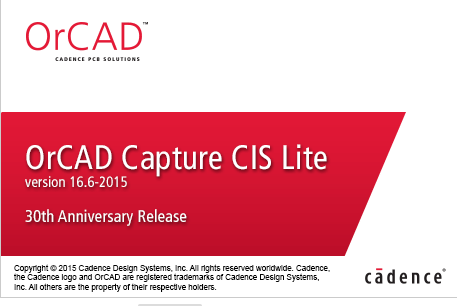
Table of Contents
What Is OrCAD Capture CIS Lite?
OrCAD Capture CIS Lite is the free educational version of Cadence OrCAD. It includes schematic capture and basic PSpice simulation capabilities but comes with certain design limitations compared to the commercial version.
The Lite version is commonly used by:
• Electronics engineering students
• PCB design beginners
• Embedded system learners
• Hobbyists and makers
It provides a practical way to learn circuit design without purchasing a commercial license.
OrCAD Software Capture CIS Lite System Requirements
- Operating System: Windows 10 or Windows 11
- RAM: 4 GB minimum (8 GB recommended)
- Processor: Intel Core i3 or equivalent
- Storage: At least 5 GB free disk space
- Internet connection required for download and activation
How to download OrCAD software capture cis lite?
Download and Install OrCAD Software: First, you need to download and install OrCAD Software on your computer. Visit the Cadence website, create an account (if required), download the installer, run the setup file, complete the installation process, and launch OrCAD Capture CIS Lite. Alternatively, you can skip the manual navigation and use the Google Drive download link provided below, which redirects to the official Cadence setup executable after account registration.
How to use OrCad software for circuit design?
Orcad is a powerful software suite used for designing electronic circuits and systems. Here are the steps to use Orcad:
- Launch Orcad: Once you have installed Orcad, launch it from the Start menu or desktop icon.
- Create a new project: Click on “File” and select “New Project” to create a new project. Name the project and choose a directory to save it in.
- Create a new schematic: Right-click on the project name in the “Project Manager” and select “Add New Schematic.” Name the schematic and click “OK.”
- Add components: To add components to the schematic, click on “Place Part” in the toolbar. You can choose components from the library or create your own custom components.
- Connect components: To connect the components, click on “Place Wire” in the toolbar. Draw the wires to connect the pins of the components.
- Define simulation settings: Click on “Pspice” and select “Edit Simulation Profile” to define simulation settings such as the simulation type, analysis type, and simulation options.
- Run simulation: Click on “Pspice” and select “Run” to run the simulation. The results of the simulation will be displayed in a graph.
- Create PCB layout: Right-click on the project name in the “Project Manager” and select “Add New PCB.” This will create a new PCB layout.
- Import netlist: Click on “File” and select “Import Netlist” to import the netlist file generated from the schematic.
- Place components: To place components on the PCB layout, click on “Place Part” in the toolbar. You can also import the placement file generated from the schematic.
- Route traces: To route the traces, click on “Route” in the toolbar. Use the routing tool to create traces between the pins of the components.
- Generate output files: Click on “File” and select “Fabrication Output” to generate the output files such as Gerber files, drill files, and fabrication drawings.
Also Read
- How to remove virus from PC?
- How to fasten your pc by 10X?
- How to delete stock bloatware apps from smartphone?
FAQs
What is OrCAD Software?
OrCAD Software is an Electronic Design Automation (EDA) tool developed by Cadence for schematic capture, circuit simulation, PCB design, and electronic system development.
Is OrCAD Software free?
Cadence offers OrCAD Capture CIS Lite, a free educational version that allows students, hobbyists, and beginners to learn circuit design and simulation.
Does OrCAD Lite include PSpice?
Yes. OrCAD Capture CIS Lite includes basic PSpice simulation functionality for circuit analysis and testing.
Can I use OrCAD Software on Windows 11?
Yes. OrCAD Capture CIS Lite supports both Windows 10 and Windows 11.
What are the limitations of OrCAD Capture CIS Lite?
The Lite version has certain project size and feature limitations compared to the commercial version, but it is suitable for learning, education, and basic circuit design projects.
Is OrCAD better than KiCad?
OrCAD is a professional EDA tool widely used in industry, while KiCad is a free and open-source alternative. OrCAD offers advanced simulation and enterprise features, whereas KiCad is popular among students, hobbyists, and small projects.
Final Thought
OrCAD Software is one of the most widely used Electronic Design Automation (EDA) tools for schematic capture, circuit simulation, and PCB design. The free OrCAD Capture CIS Lite version provides students, hobbyists, and beginners with an excellent way to learn electronic circuit design without purchasing a commercial license.
By following the steps in this guide, you can download, install, and start using OrCAD Software for schematic creation, PSpice simulation, and PCB development. If you experience any installation issues, make sure your system meets the requirements and always download the latest version from Cadence.




I wonder how much work goes into creating a website this excellent and educational. I’ve read a few really good things here, and it’s definitely worth saving for future visits.