How to Fix Prime Video Audio Distortion in 10 Easy Steps

Audio distortion while watching your favorite shows on Prime Video can completely ruin the experience. Whether it’s crackling sound, robotic voices, muffled dialogue, or inconsistent volume levels, these issues are surprisingly common—and thankfully, fixable.
In this detailed guide, you’ll learn 10 practical and effective steps to fix Prime Video audio distortion across different devices, including smartphones, tablets, smart TVs, and laptops. These solutions are based on real-world troubleshooting and will help you restore crystal-clear audio.
Table of Contents
Understanding the Problem
Before jumping into fixes, it’s important to understand what audio distortion actually is.
Audio distortion in Prime Video can appear as:
- Crackling or static noise
- Robotic or metallic voices
- Audio lag or delay
- Volume fluctuations
- Distorted sound only during playback (but not trailers)
Interestingly, many users report that trailers play fine, but actual content has distorted audio. This clearly points to software or decoding issues rather than hardware problems.
Step 1: Prime Video Audio Distortion Fix by Restarting Your Device
This might sound basic, but it’s one of the most effective fixes.
Why it works:
Temporary glitches in audio processing or memory overload can cause distortion. Restarting clears RAM and resets background services.
What to do:
- Restart your phone, tablet, or TV
- Relaunch Prime Video
- Play the same content again
Step 2: Prime Video Audio Distortion Fix by Disabling Hardware Acceleration
This is one of the most common causes of distorted audio.
Why it happens:
Hardware acceleration uses your device’s GPU/decoder. Sometimes, it fails to properly decode high-quality audio streams, leading to distortion.
Fix:
- Go to device settings (especially on Android)
- Open Developer Options
- Disable HW overlays / hardware acceleration
OR
Inside browser (if watching on PC):
- Disable hardware acceleration in Chrome/Edge settings
Result:
Audio becomes normal—but video quality may drop slightly (e.g., HD → 480p)
Step 3: Prime Video Audio Distortion Fix Using Correct Audio Output Settings
Incorrect audio output configuration can cause distortion.
Things to check:
- Stereo vs Surround sound
- Bluetooth vs Speaker output
- Mono audio settings
Fix:
- Switch audio output to Stereo
- Disable Dolby Atmos / surround sound temporarily
- Turn OFF Mono audio (or toggle it ON then OFF to reset)
Step 4: Prime Video Audio Distortion Fix for Bluetooth Devices
Bluetooth audio devices sometimes cause distortion due to:
- Codec mismatch (SBC, AAC, aptX)
- Signal interference
- Delay buffering issues
Fix:
- Disconnect Bluetooth headphones/speakers
- Play audio via device speaker
- If fixed → reconnect and test again
Step 5: Prime Video Audio Distortion Fix by Improving Internet Connection
Poor or unstable internet can cause:
- Audio buffering issues
- Sync problems
- Distorted playback
Fix:
- Switch to a stable Wi-Fi network
- Avoid mobile data if weak
- Restart your router
Tip:
Even if video loads, audio streams can still fail separately.
Step 6: Prime Video Audio Distortion Fix by Clearing App Cache
Corrupted cache is a major hidden cause of distortion.
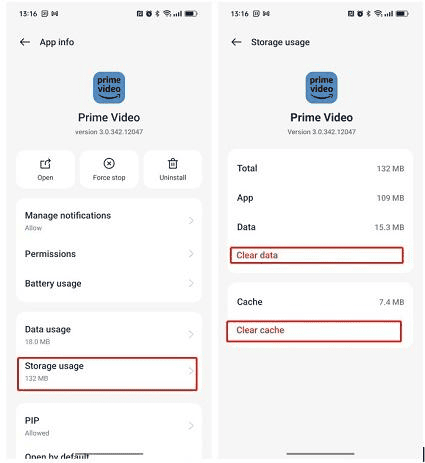
Steps (Android):
- Go to Settings → Apps → Prime Video
- Tap Storage
- Click Clear Cache
For Smart TVs:
- Restart the app or reinstall it
Step 7: Update the Prime Video App
Outdated versions often have bugs related to audio decoding.
Fix:
- Go to Play Store / App Store
- Update Prime Video
- Restart the app
Why it works:
New updates fix compatibility issues with codecs and devices.
Step 8: Lower Video Quality Manually
This is a proven workaround.
Why it works:
High-quality streaming (HD/4K) uses advanced audio codecs. If your device struggles to decode them, distortion occurs.
Fix:
- While playing video → go to settings
- Change quality from Best → Good or Better
Step 9: Check System Sound Enhancements
Many devices apply sound effects like:
- Dolby enhancements
- Equalizer presets
- AI sound processing
These can interfere with streaming audio.
Fix:
- Go to Sound Settings
- Disable:
- Dolby Atmos
- Equalizer
- Sound boosters
Step 10: Reinstall Prime Video
If nothing works, reinstalling is the final fix.
Why:
- Removes corrupted files
- Resets all settings
- Installs fresh codecs
Steps:
- Uninstall Prime Video
- Restart device
- Install again
Bonus Fixes (Advanced)
If you’re still facing issues, try these:
Use a Different Browser (PC)
Sometimes browser audio engines cause issues.
Check Device Compatibility
Older devices struggle with newer codecs.
Test Other Apps
- If YouTube/Netflix works fine → issue is Prime Video-specific
- If all apps distort → hardware problem
Common Scenarios & Solutions
| Problem | Likely Cause | Fix |
|---|---|---|
| Distortion only in movies | Codec issue | Disable hardware acceleration |
| Audio fine in trailers | Streaming issue | Lower video quality |
| Works after disabling HW acceleration | GPU decoding issue | Keep it OFF |
| Bluetooth distortion | Codec mismatch | Use wired or speaker |
When It’s NOT a Software Issue
Sometimes, the issue is hardware-related:
- Faulty speakers
- Damaged headphones
- Audio IC issues
How to confirm:
Play music locally (offline file).
If distortion persists → hardware problem.
Also read
Final Thought
Audio distortion in Prime Video can feel frustrating, especially when everything worked fine earlier. The key thing to understand is that this issue is usually caused by decoding conflicts, not hardware failure.
The most effective fixes are:
- Disable hardware acceleration
- Lower video quality
- Clear app cache
- Check audio output settings
If you follow all 10 steps carefully, you should be able to resolve the issue completely.